Navigating directories & cross platform support
Your application can navigate the user's file system by setting and updating a current directory. When a directory is selected using the File System - Set Current Directory action, the contents of that location are read and returned as a list of files and folders to the List Of Files In Current Directory state.
From there, your application can move through the directory structure using additional navigation actions. For example, you can use File System - Go Back A Directory action, which removes the last segment of the current path, or move forward a directory with the File System - Go To Next Directory action by appending a folder name to the current path.
These actions allow you to build custom file browsing interfaces, giving users the ability to explore folders, view files, and navigate through their filesystem directly within your application.
You may find yourself looking to build custom directory path - this is straight forward with one caveat; The file path separator is different depending on the OS
macOS / Linux separates file paths with /
While Windows separates file paths with \
You can manually handle this distinction yourself, or just join paths with the File System Separator state.
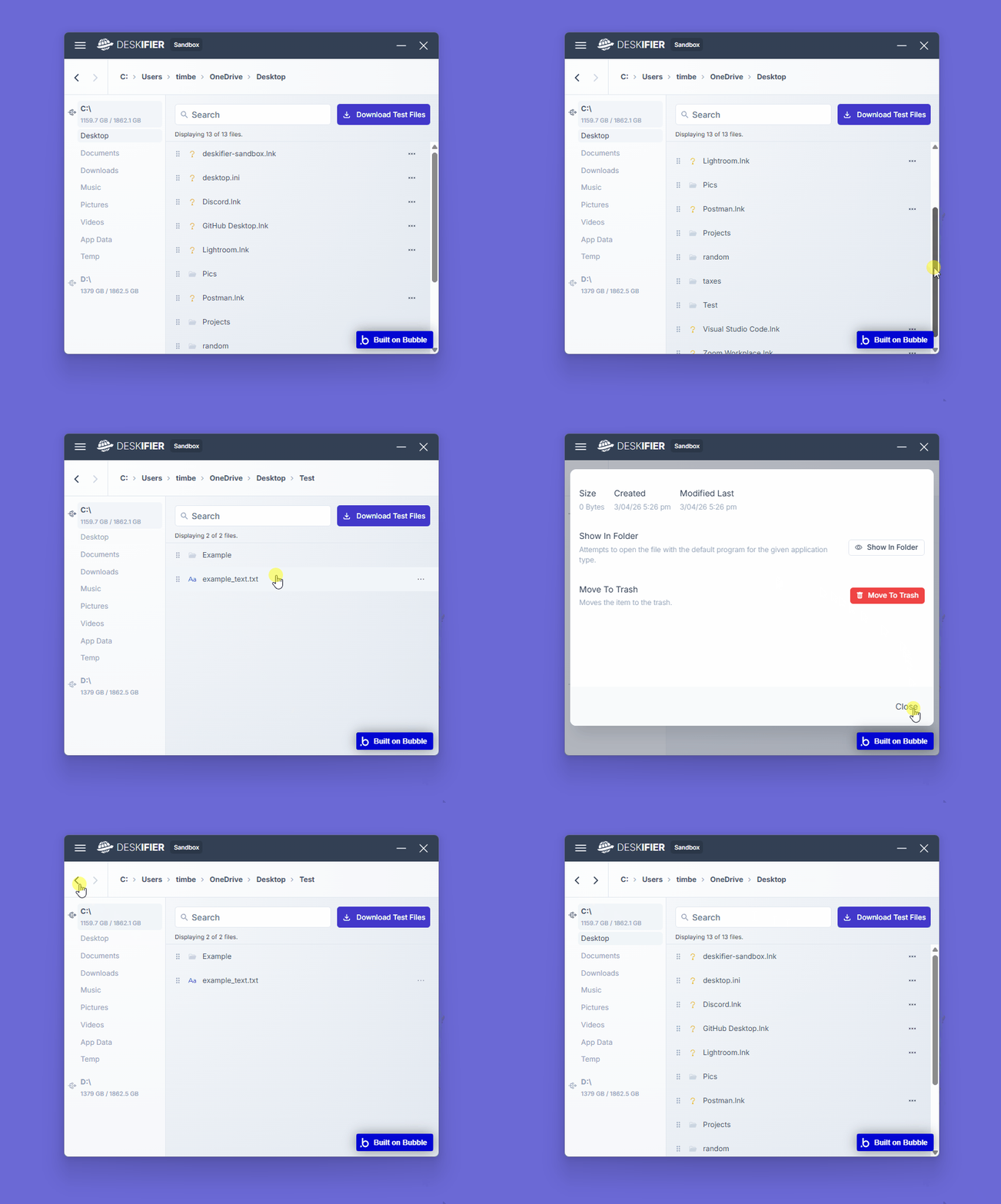
<figure><img src="https://909455594-files.gitbook.io/~/files/v0/b/gitbook-x-prod.appspot.com/o/spaces%2FC8kwY8yODXmNxAtaN0Ej%2Fuploads%2Fgh3UFEJdYkWvRhMc5yy4%2FfsNavigation.gif?alt=media&token=870553ba-81bc-4d38-b314-013ebb2f9b12" alt=""><figcaption></figcaption></figure>
How To:
View this example in the Bubble editor:
https://bubble.io/page?id=deskifier-plugin-test&tab=Design&name=directory-nav-example&type=page&elements=bTQlg
While building a full file explorer can get a little complex, we'll focus on some basics to get started with.
First you'll need the Filesystem Element on your page.
Step 1.
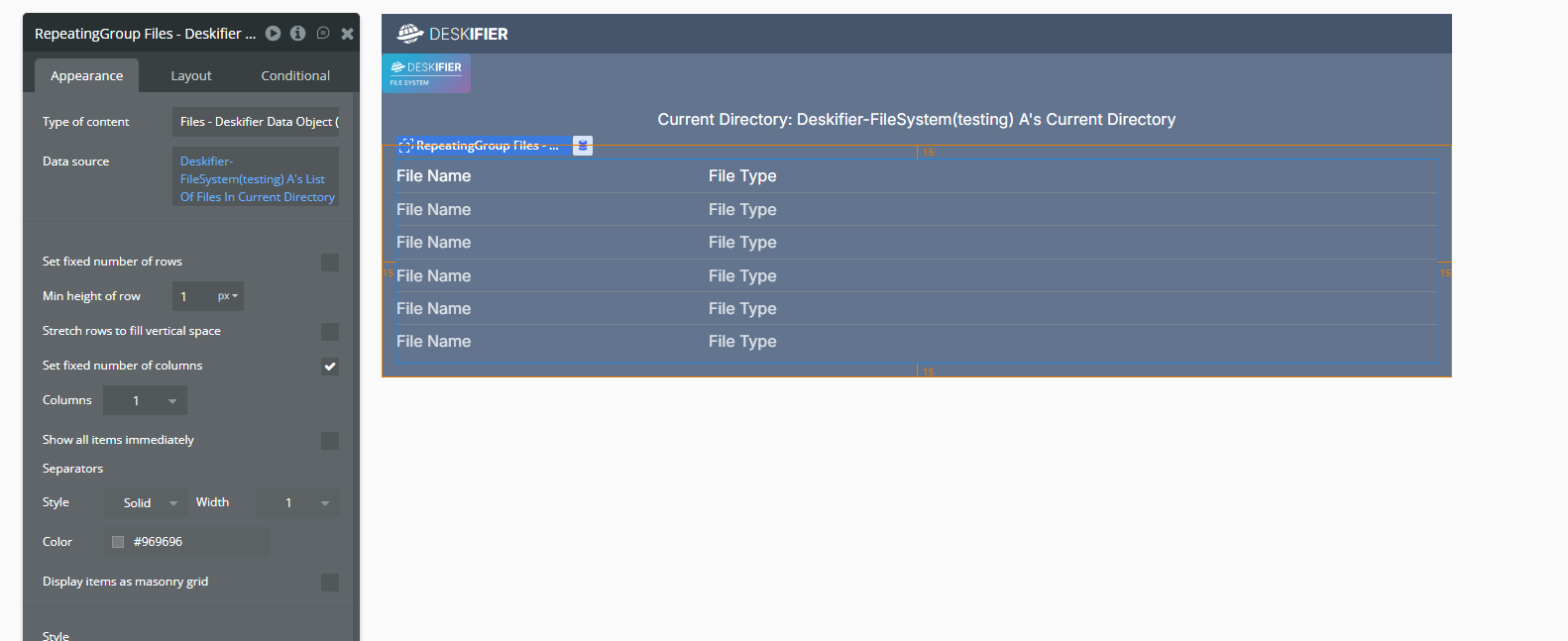
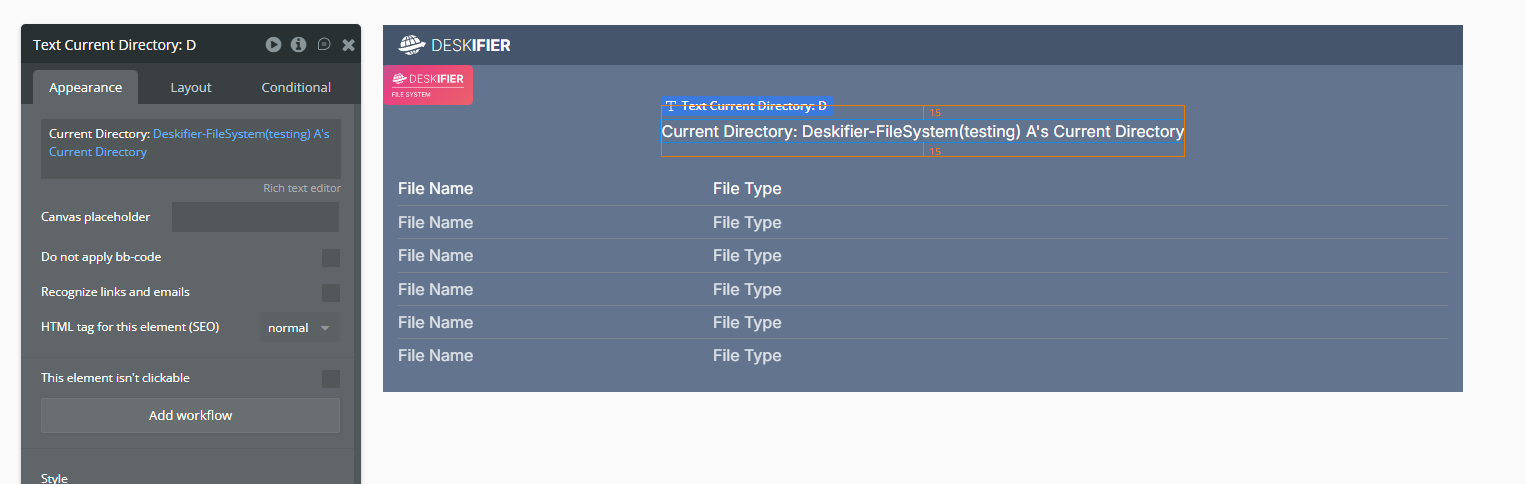
Next, let's add some text, and a repeating group that will display our outputs.
<figure><img src="https://909455594-files.gitbook.io/~/files/v0/b/gitbook-x-prod.appspot.com/o/spaces%2FC8kwY8yODXmNxAtaN0Ej%2Fuploads%2FpBKsRB8cWyRMHn3CNjuo%2Fimage.png?alt=media&token=b178a4f4-f207-4387-972d-be7d87d3ccd6" alt=""><figcaption></figcaption></figure>
<figure><img src="https://909455594-files.gitbook.io/~/files/v0/b/gitbook-x-prod.appspot.com/o/spaces%2FC8kwY8yODXmNxAtaN0Ej%2Fuploads%2FUeAAKrL5jK1yo6HylngF%2Fimage.png?alt=media&token=f854bc02-d2fc-40be-8c96-862b0ee0ea80" alt=""><figcaption></figcaption></figure>
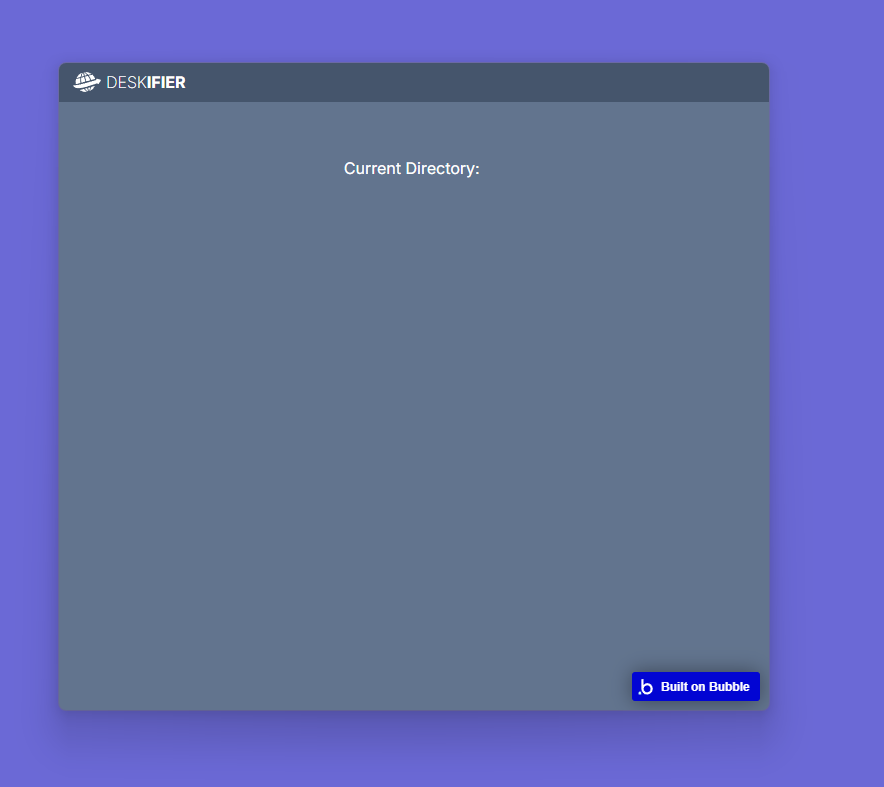
If we preview our app now, we'll see that the repeating group and current directory are both empty.
<figure><img src="https://909455594-files.gitbook.io/~/files/v0/b/gitbook-x-prod.appspot.com/o/spaces%2FC8kwY8yODXmNxAtaN0Ej%2Fuploads%2FeOWd2kh6e08fEXfy9HJy%2Fimage.png?alt=media&token=29bd8786-af00-44e5-a414-116f42e3ed33" alt=""><figcaption></figcaption></figure>
Step 2.
Next we'll add a button we can click to set the initial directory.
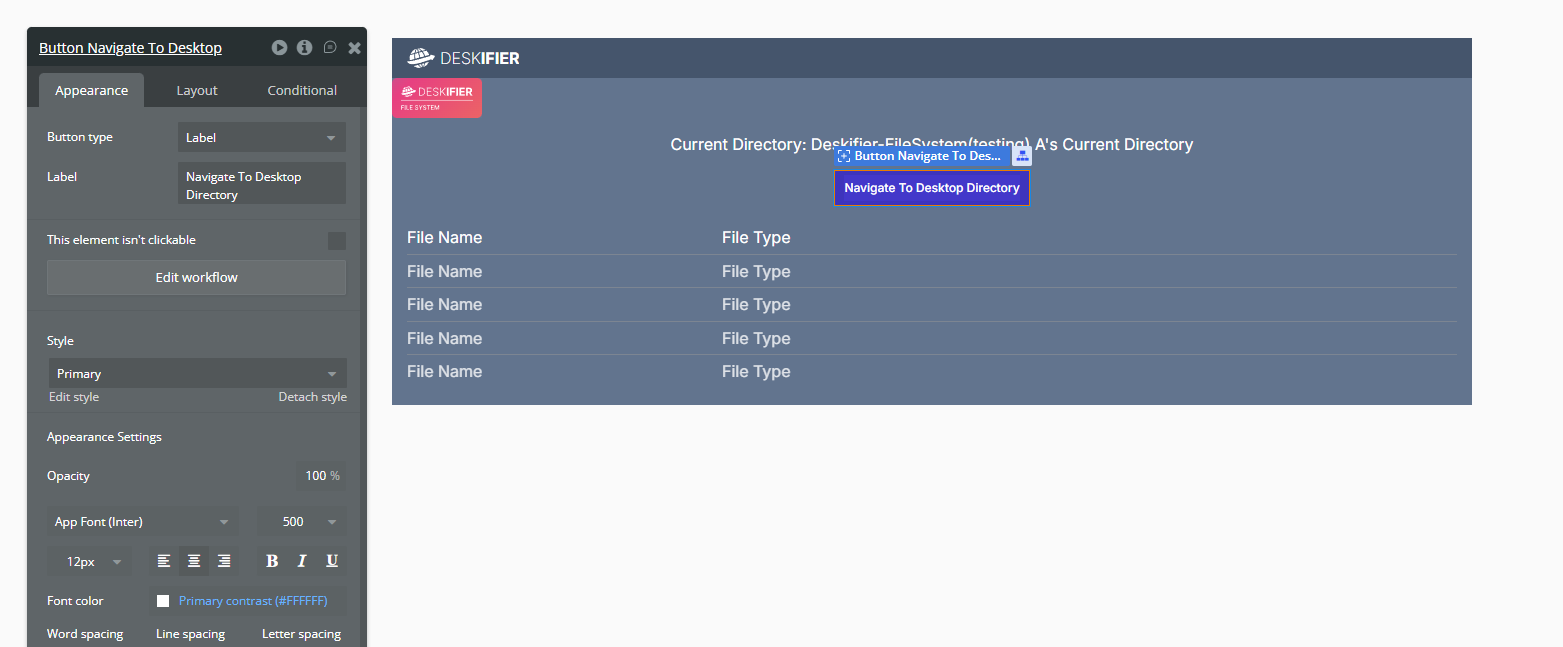
<figure><img src="https://909455594-files.gitbook.io/~/files/v0/b/gitbook-x-prod.appspot.com/o/spaces%2FC8kwY8yODXmNxAtaN0Ej%2Fuploads%2FKYlKiIJiC4FbdP4uNqo9%2Fimage.png?alt=media&token=f013ba99-e5df-4655-99f5-0faaff2e2ee2" alt=""><figcaption></figcaption></figure>
Add a workflow with the File System - Set Current Directory action using the Desktop Folder Directory state as our directory input.
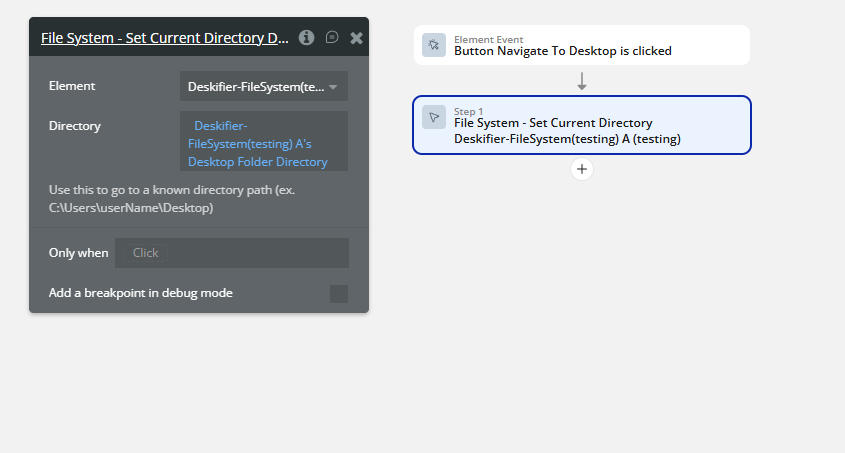
<figure><img src="https://909455594-files.gitbook.io/~/files/v0/b/gitbook-x-prod.appspot.com/o/spaces%2FC8kwY8yODXmNxAtaN0Ej%2Fuploads%2Fibd3so1mH5vDF4OIEqbU%2Fimage.png?alt=media&token=af14b06d-c538-4502-be25-d3d57928a1b1" alt=""><figcaption></figcaption></figure>
Now when we preview and click the button, we'll see an output.
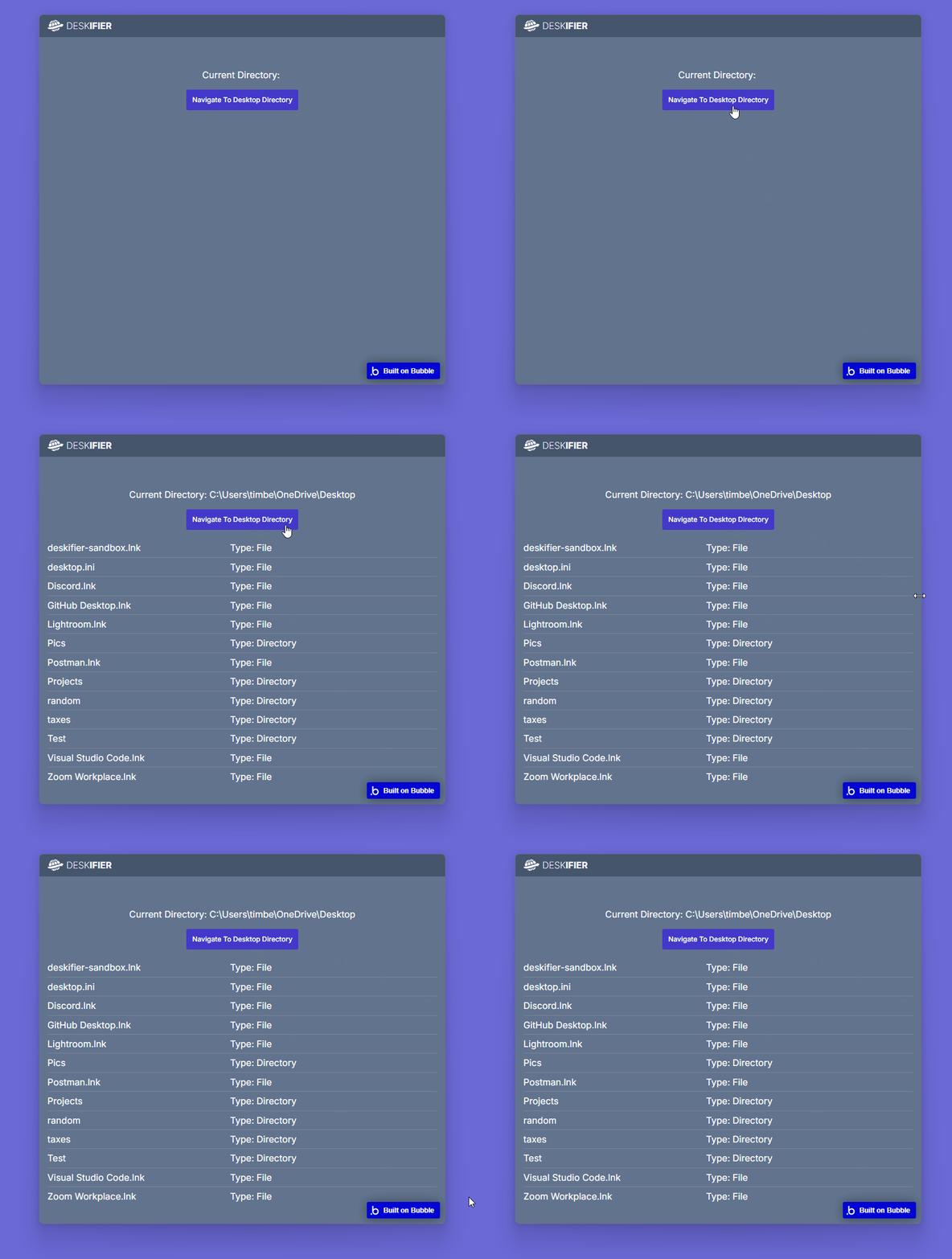
<figure><img src="https://909455594-files.gitbook.io/~/files/v0/b/gitbook-x-prod.appspot.com/o/spaces%2FC8kwY8yODXmNxAtaN0Ej%2Fuploads%2FIxAXs1lCr2MxR9HV1Pnu%2FsetCurrentDirectory.gif?alt=media&token=7f3abfb5-e0da-4c09-be18-339e19d9d09c" alt=""><figcaption></figcaption></figure>
Step 3.
Now, we have a list of files and directories. Let's add a button so that we can explore the directories further.
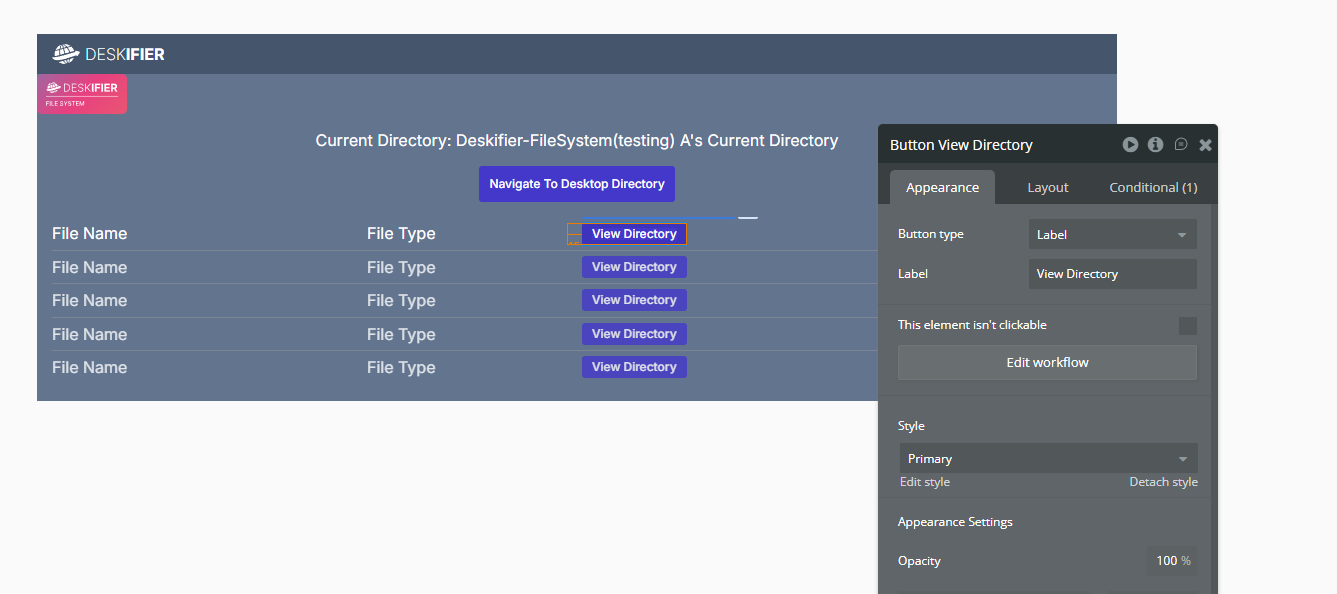
<figure><img src="https://909455594-files.gitbook.io/~/files/v0/b/gitbook-x-prod.appspot.com/o/spaces%2FC8kwY8yODXmNxAtaN0Ej%2Fuploads%2F9LxqVeKFwEiz8PF3pGCH%2Fimage.png?alt=media&token=bf25eb43-100a-4fbd-a59a-5cb4ca31c07d" alt=""><figcaption></figcaption></figure>
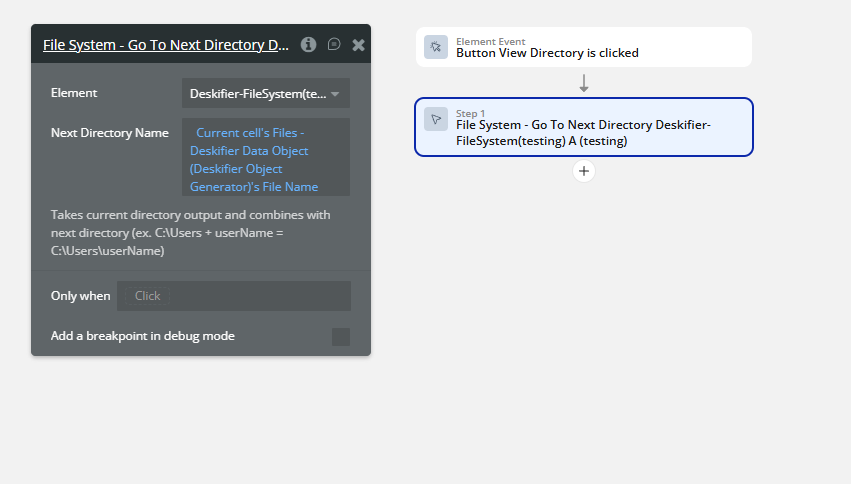
Add a workflow with the File System - Go To Next Directory action. We'll use the current cell's file name as the input. This takes our current directory, and appends the file name onto the end, and sets that as our new directory.
<figure><img src="https://909455594-files.gitbook.io/~/files/v0/b/gitbook-x-prod.appspot.com/o/spaces%2FC8kwY8yODXmNxAtaN0Ej%2Fuploads%2FEw6EQCbCHaQD0kraQFiN%2Fimage.png?alt=media&token=e2fa7aac-1ea1-42bf-ab7c-283e8c67211f" alt=""><figcaption></figcaption></figure>
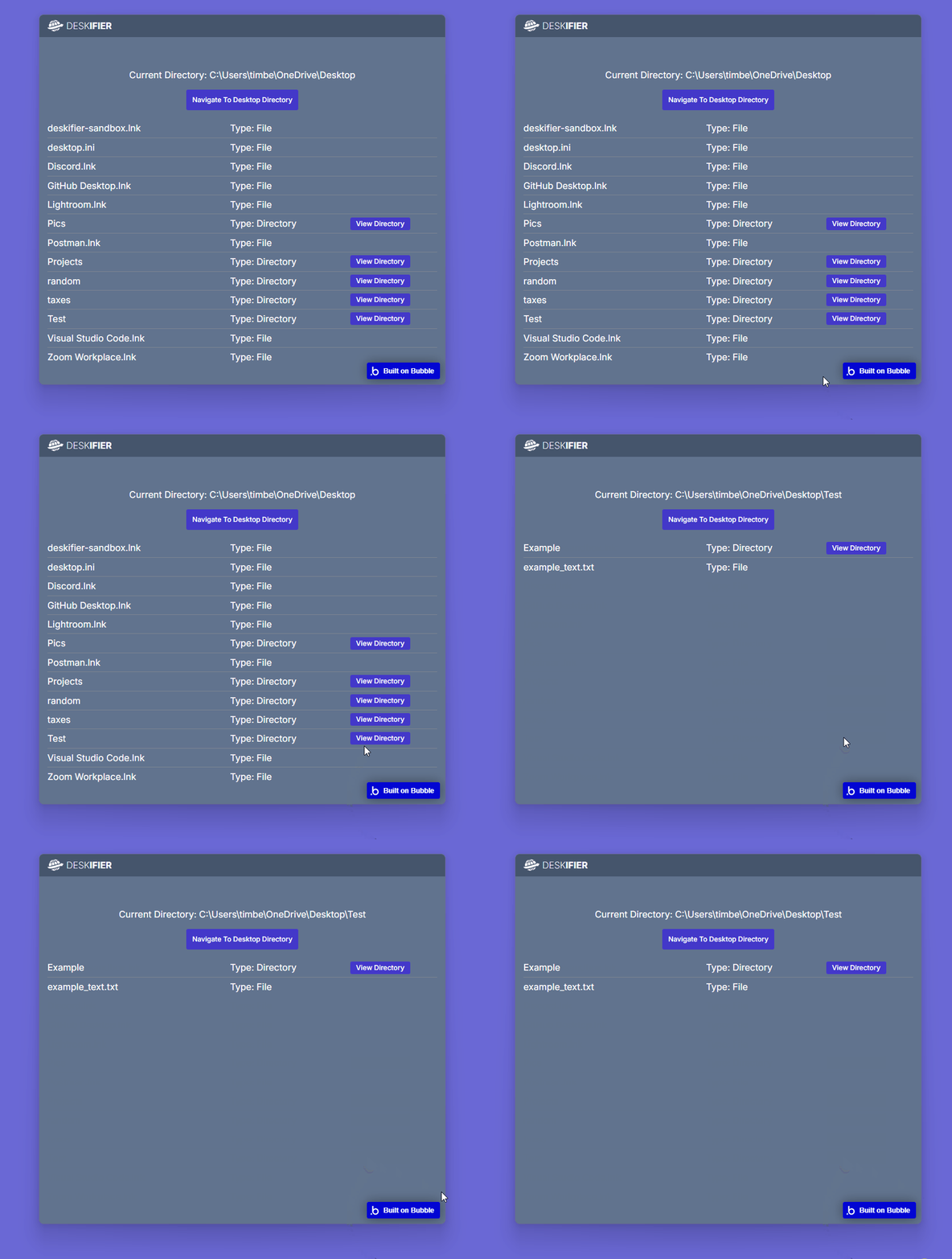
Now when we preview our app, clicking the button should show us the contents of that directory
<figure><img src="https://909455594-files.gitbook.io/~/files/v0/b/gitbook-x-prod.appspot.com/o/spaces%2FC8kwY8yODXmNxAtaN0Ej%2Fuploads%2FAHjWy5qPpAYcq46LIua3%2FgoToNextDirectory.gif?alt=media&token=622df7b6-6969-4e6e-9671-5c4ccc7fa7c1" alt=""><figcaption></figcaption></figure>