Capture user input from dialog message box
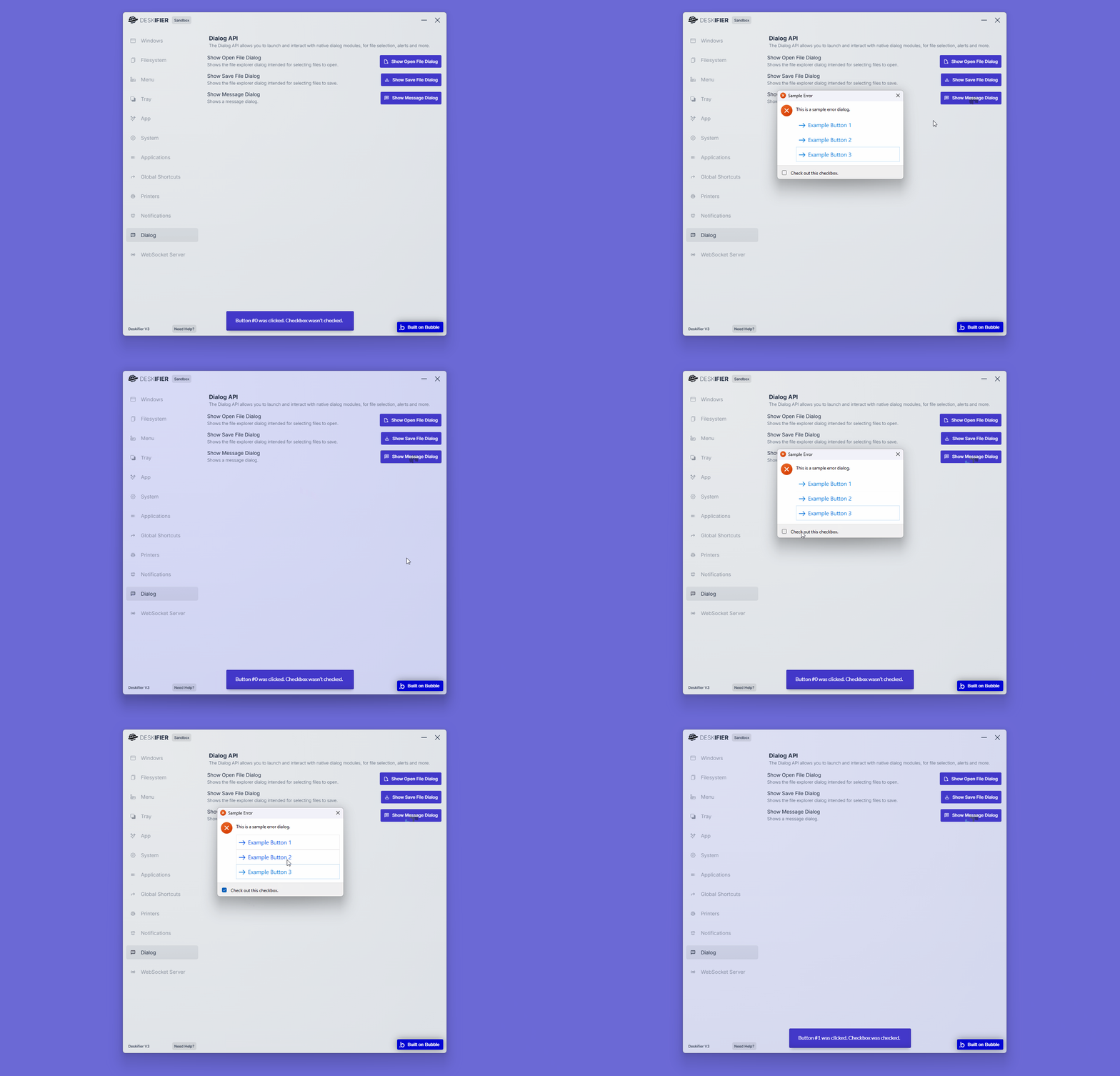
Using the Show Message Box action launches a message dialog that allows your application to display important information and prompt the user to choose between one or more options.
These options can be customized.
When a user selects an option, the Message Box Button Clicked Index state returns the result of that interaction.
Additionally, the Message Box Checkbox Checked state will return if the shown checkbox is checked.
<figure><img src="https://909455594-files.gitbook.io/~/files/v0/b/gitbook-x-prod.appspot.com/o/spaces%2FC8kwY8yODXmNxAtaN0Ej%2Fuploads%2FotrmkyX3LEVNx8BLvqnU%2FshowMessageBox.gif?alt=media&token=599e195d-d850-454b-8417-e0072693f374" alt=""><figcaption></figcaption></figure>
How To:
View this example in the Bubble editor:
https://bubble.io/page?id=deskifier-plugin-test&tab=Workflow&name=sandbox&type=page&wf_item=bTPPW
Step 1.
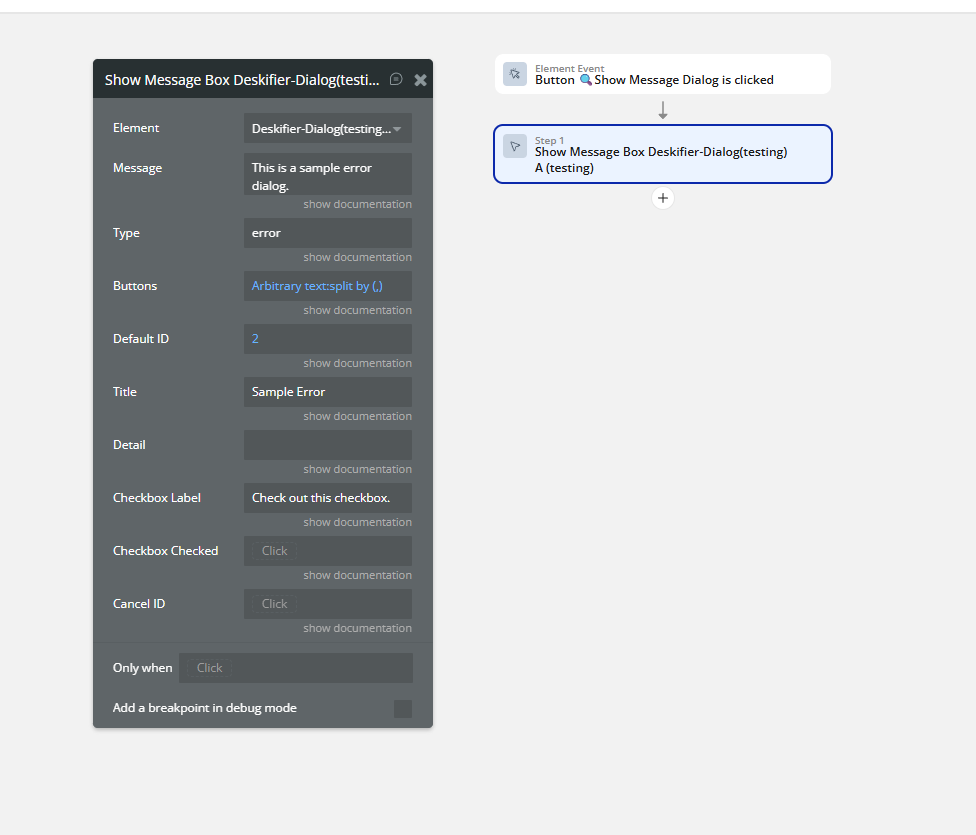
To show a message box, we simply just need to call the Show Message Box action.
<figure><img src="https://909455594-files.gitbook.io/~/files/v0/b/gitbook-x-prod.appspot.com/o/spaces%2FC8kwY8yODXmNxAtaN0Ej%2Fuploads%2F9LMZ65SsNjvcZHx51Zvv%2Fimage.png?alt=media&token=3763f289-7bcb-47f2-8fe0-6178f663e7f9" alt=""><figcaption></figcaption></figure>
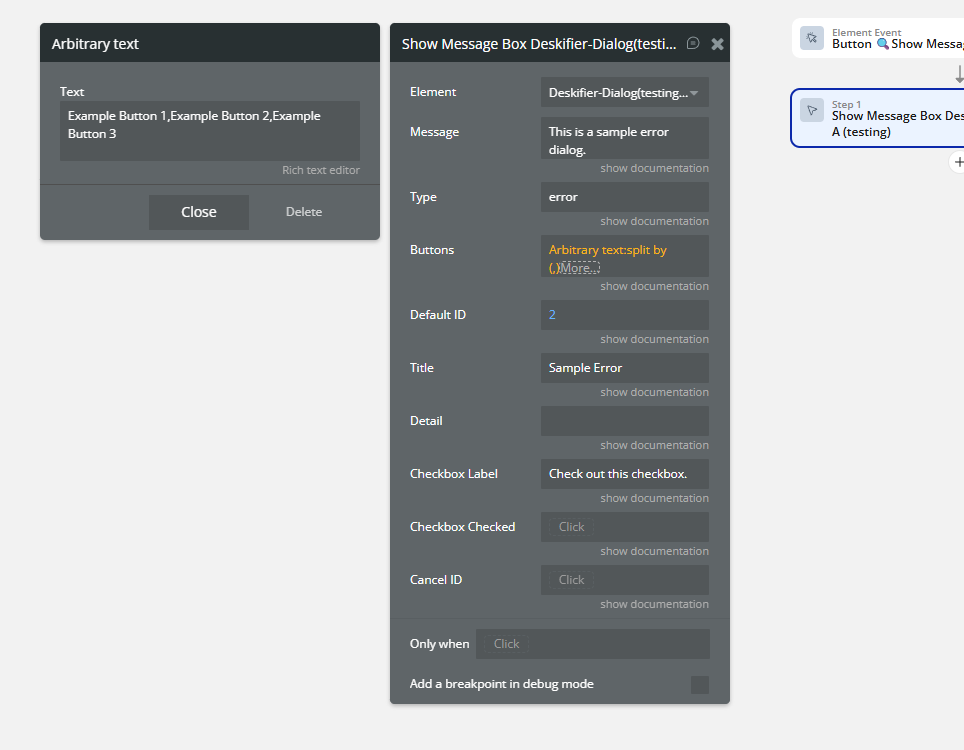
We can specify which buttons to display in the message box.
<figure><img src="https://909455594-files.gitbook.io/~/files/v0/b/gitbook-x-prod.appspot.com/o/spaces%2FC8kwY8yODXmNxAtaN0Ej%2Fuploads%2FlQ6TQyd7fQ1S8AmCrn2v%2Fimage.png?alt=media&token=53a2c53a-4437-4010-bcf8-2598a2b5de12" alt=""><figcaption></figcaption></figure>
Step 2.
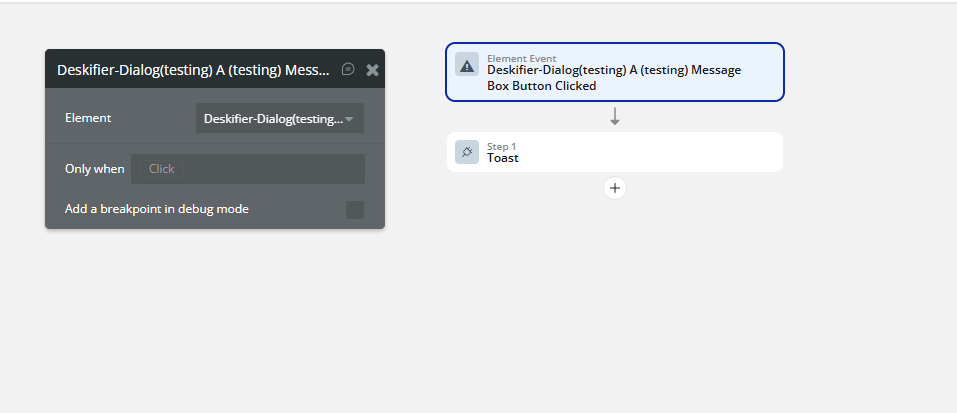
Next, we'll listen for the Message Box Button Clicked event.
<figure><img src="https://909455594-files.gitbook.io/~/files/v0/b/gitbook-x-prod.appspot.com/o/spaces%2FC8kwY8yODXmNxAtaN0Ej%2Fuploads%2FarjJCB1qwEBtGCAE2gpU%2Fimage.png?alt=media&token=96b02215-98b1-4487-b28c-51fa532c33ba" alt=""><figcaption></figcaption></figure>
This will populate our Message Box Button Clicked Index state.
The button index is 0-based, which means counting starts at 0 instead of 1.