Dragging & dropping files
Your application can support drag-and-drop, allowing users to drop files directly onto the app instead of selecting them through a file picker.
When files are dragged over the application, the Drag Over state becomes yes, which can be used to update your UI (for example, highlighting a drop zone).
If the user drops the files onto the window, the File System - File(s) Dropped event will trigger. The file locations can then be accessed through the Paths Of Dropped File(s) state.
You can also support dragging files out of your app into other applications using the Make Draggable Element.
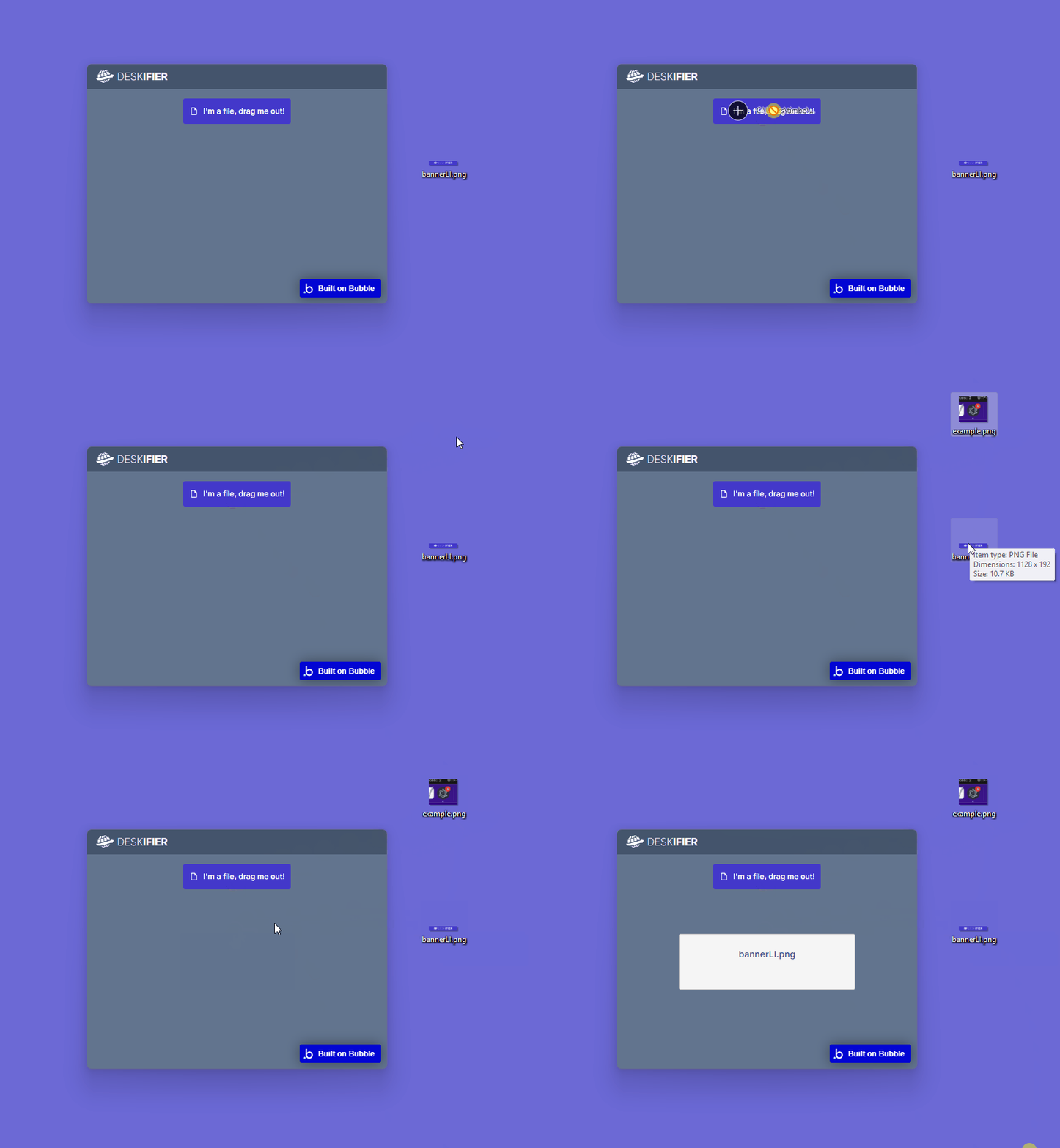
How To:
View this example in the Bubble editor:
https://bubble.io/page?id=deskifier-plugin-test&tab=Design&name=drag-and-drop-example&type=page&elements=bTQjb
To make our application able to accept incoming file drops, we need to set the Enable File Dropping property to "yes" in our Filesystem Element.
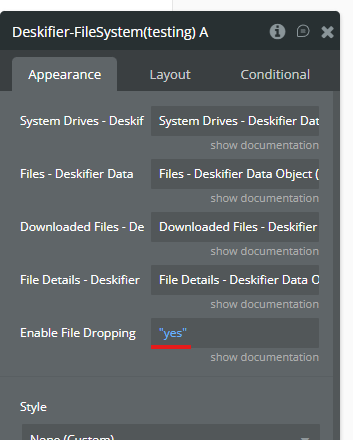
Step 1.
Firstly, we want to detect when a user is dragging a file over our app, so we can update our UI accordingly.
This is simple to do, we can just use a conditional based on the Drag Over state.
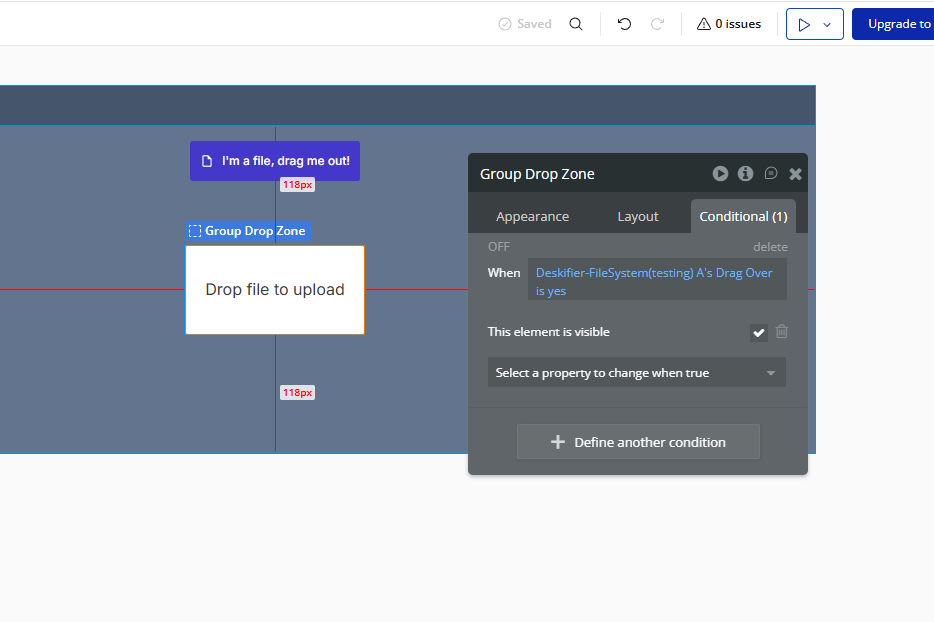
Step 2.
Next, we'll handle the actual file dropping event. We'll listen for the File System - File(s) Dropped event.
And then we'll set the value of our file uploader, to automatically upload the dropped file using the Paths Of Dropped File(s) state.
For more details on how the file uploader works, check the handling file uploads guide.
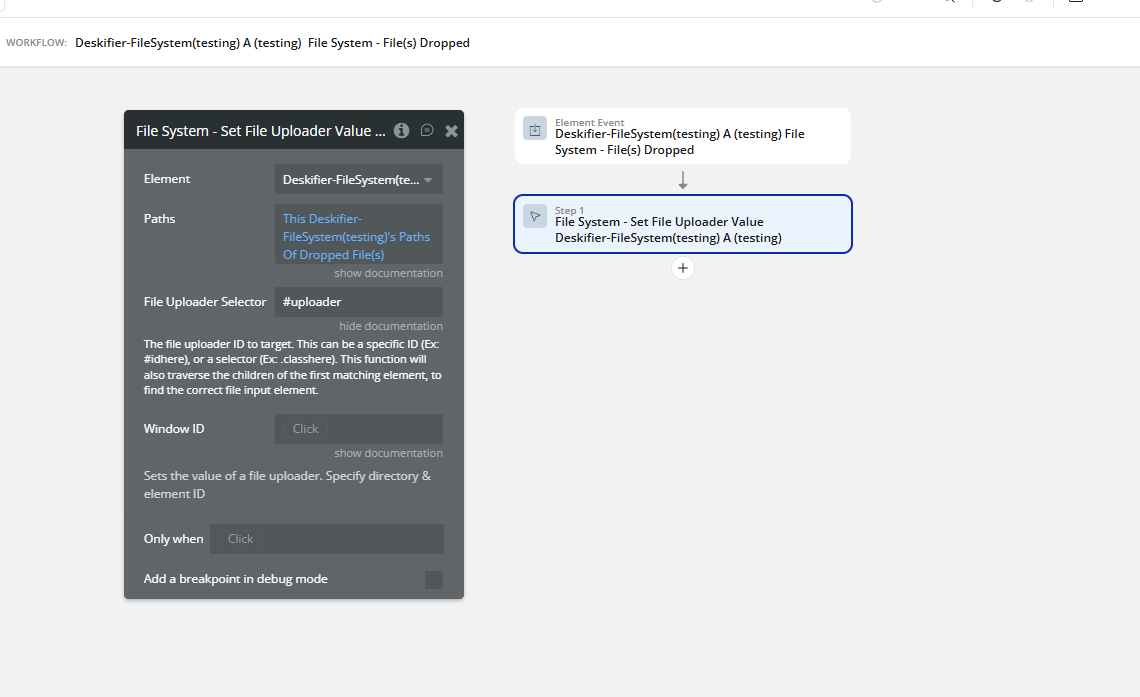
Step 3.
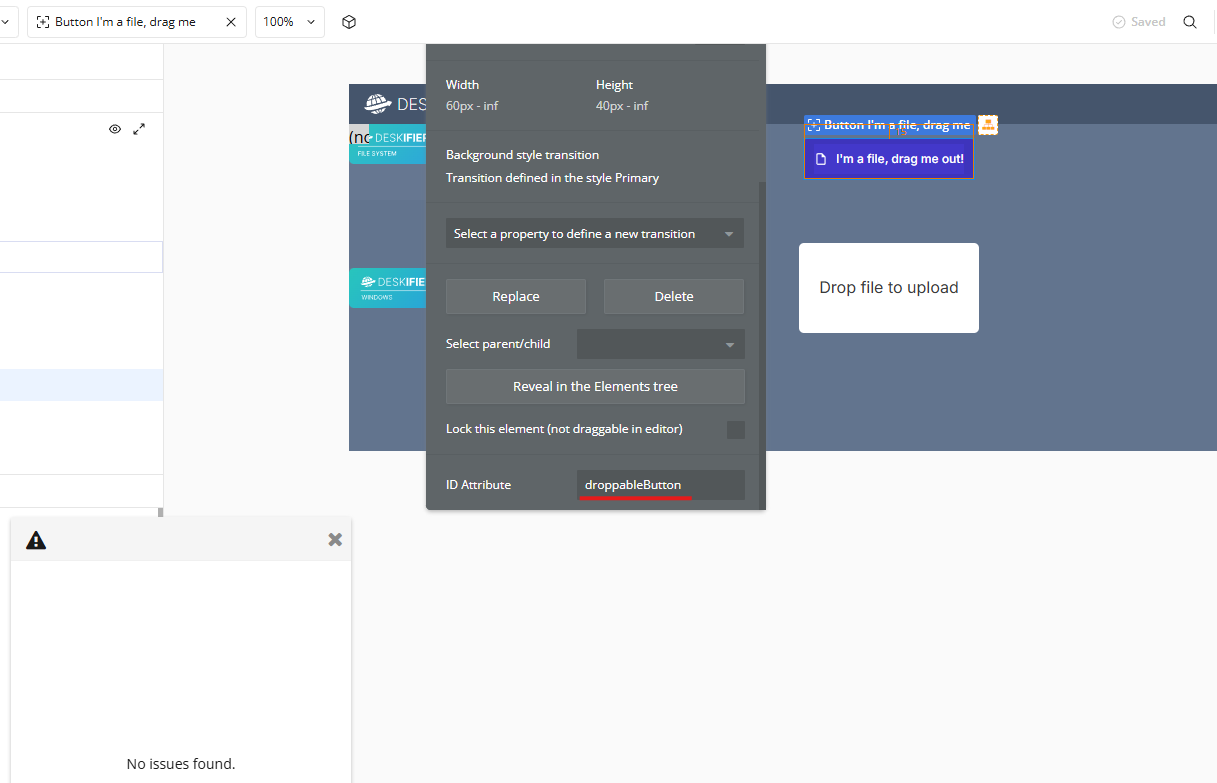
Next step is to make a draggable element that we can drag outside of our app, onto other applications.
For this, we'll add an ID Attribute to the element we want to become "droppable"
Step 4.
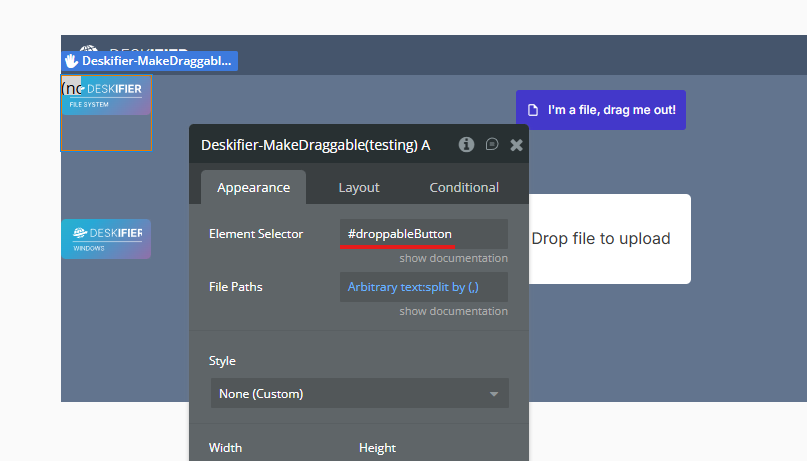
Lastly, add the Make Draggable Element to your page, and target our specified ID Attribute.
For tips on getting file paths, read the navigating directories guide.