Generating a menu template
Menus are created using a menu template, which defines the structure and behavior of the menu in a JSON format.
You can generate a template in two ways. The first option is to build the JSON template using the tool at www.deskifier.com/menugenerator. The second option is to create and manage menu templates directly from the Deskifier dashboard UI.
Once a template has been created, you can reference it in your application by providing the template ID when creating a menu. This allows you to reuse and manage menu configurations without needing to define them manually in your workflows.
Here's an example menu built in the Menu Generator
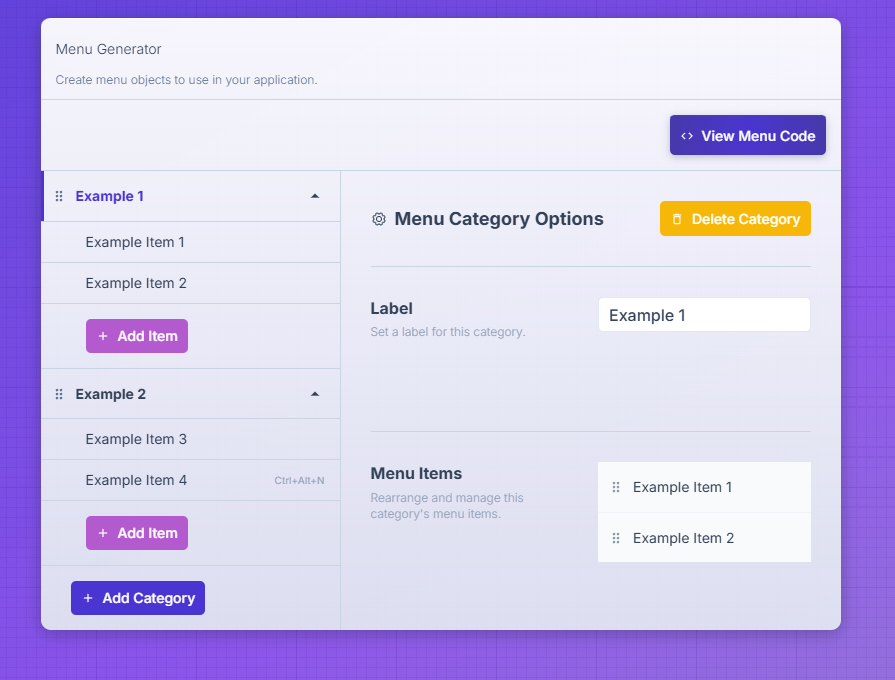
And the code output:
[
    {
        "type": "submenu",
        "id": "id-xpzkrg3vb",
        "label": "Example 1",
        "submenu": [
            {
                "type": "normal",
                "id": "id-cnvvcywud",
                "label": "Example Item 1",
                "role": "about"
            },
            {
                "type": "normal",
                "id": "id-cotty37iv",
                "label": "Example Item 2",
                "role": "quit"
            }
        ]
    },
    {
        "type": "submenu",
        "id": "id-b0rxg0v69",
        "label": "Example 2",
        "submenu": [
            {
                "type": "normal",
                "id": "id-rxcmihlgc",
                "label": "Example Item 3",
                "role": "undo"
            },
            {
                "type": "normal",
                "id": "id-ojtrcuwar",
                "label": "Example Item 4",
                "role": "redo",
                "accelerator": "CmdOrCtrl+Alt+N"
            }
        ]
    }
]