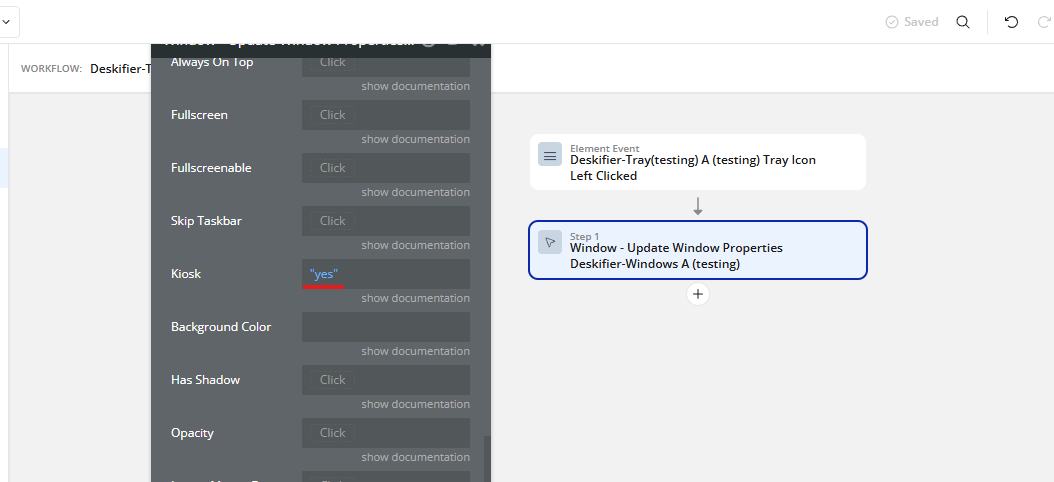
Kiosk mode
Kiosk mode locks your app to the screen and blocks normal system navigation.
What Happens When Kiosk Mode Is On
- The window fills the entire screen.
- Close, minimize, and resize controls are removed.
- The user cannot move or resize the window.
- The app stays in the foreground.
- The system menu bar, dock, or taskbar is hidden (depending on the OS).
Typical Use Cases
Kiosk mode is useful for:
- Public terminals or check-in stations
- Point-of-sale systems
- Office dashboards on display screens
- Trade show or demo setups
- Any kind of internal tools that should remain visible
Things to Keep in Mind
Kiosk mode is restrictive by design.
Before enabling it:
Add a way to exit (keyboard shortcut, admin control, etc.).
Test on each operating system, since behavior may vary.
The kiosk window will only occupy one screen. If your user has additional screens connected, these will not be covered. In this case, you should spawn additional cover windows for these monitors.
How To:
To use kiosk mode, simply run the Update Window Properties action, and set Kiosk to "yes"