Publishing to Steam
Deskifier builds your Steam depots and uploads them with SteamPipe from our pipeline. You never install steamcmd, never touch a .vdf build script, and never download a build just to upload it somewhere else. Once it's set up, shipping a release is one button per platform.
This page covers the whole path. If you only want the SDK (achievements, stats, cloud saves, rich presence), that's the Steam page instead.
Before you start
You need three things from Valve's side:
- A Steamworks account, with the $100 App Credit paid and your app through review. Valve issues your App ID at that point.
- Depots for the platforms you ship. Valve creates the first one with your app; you add the rest under App Admin → Depots (they're usually your App ID + 1, + 2, and so on).
- Deskifier on your team: you invite Deskifier's builder account to your Steamworks team. See below.
No App ID yet? You can still build and test everything except the upload. Set your App ID to 480 (Spacewar, Valve's public test app) in the Steam section and the SDK works end to end against it. Swap in your real App ID when it's issued.
Become a Steamworks partner
If you don't have a Steamworks partner account yet, start on Valve's sign-up page. Sign in with your own Steam account, the one your studio will publish under, then under What brings you to Steamworks? choose I'm a developer or publisher and click Sign Up.
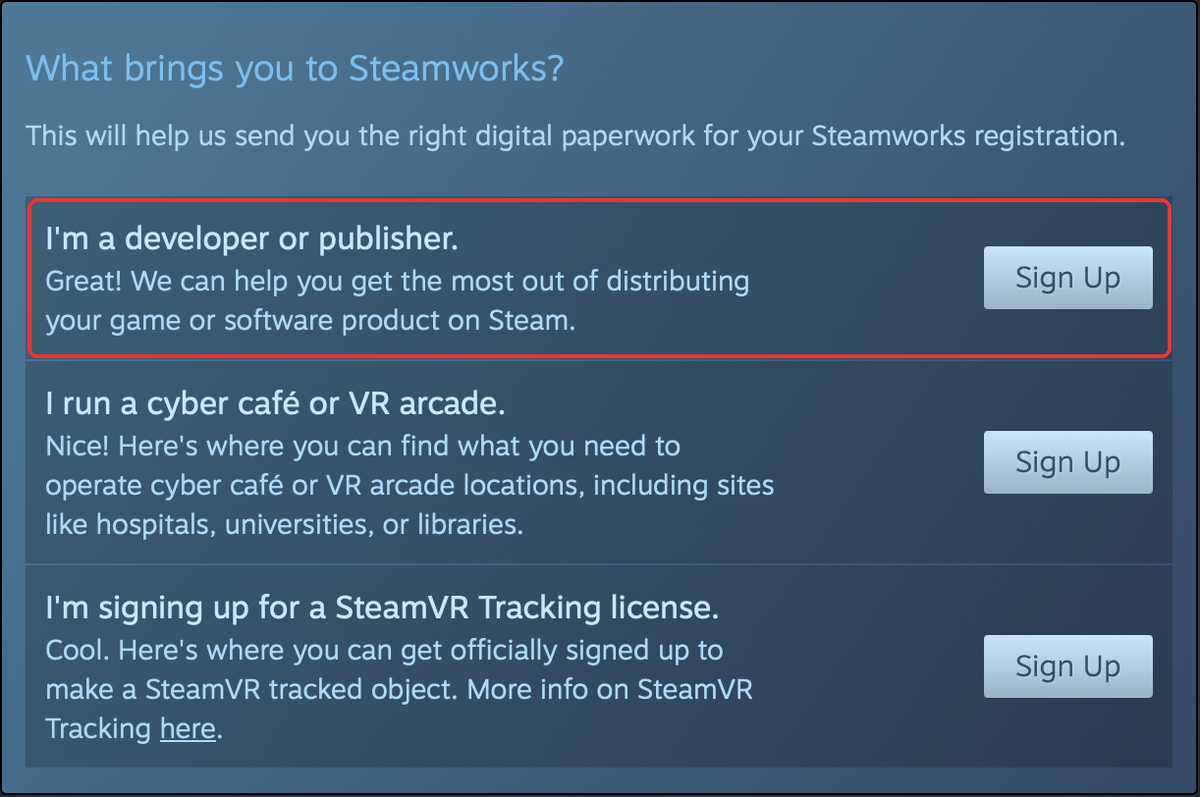
Valve then takes you through its paperwork in order:
- Enter Name & Address: your company or your own legal details.
- Sign NDA and Sign SDA: Valve's non-disclosure and distribution agreements.
- Pay Fee: the $100 app fee for your game.
- Enter Payment & Tax Info: bank and tax details, and a check of your identity.

The identity check can take a few days, and Valve reviews your store page and first build before they go live, which takes 1 to 5 days. Start well before you plan to release.
Who uploads your builds
Uploading to Steam needs a Steam account on your Steamworks team. Deskifier has its own Steam account for uploading, and you invite it to your team like any other member. There's no account to create and no Steam Guard codes to pass along.
- On the Builds page, open Steam and follow the setup to the invite step. It shows an address made for your app, like
steam+k3x9q2m7ab@inbound.deskifier.com. - On your partner account, go to Users & Permissions, click Invite user, and invite that address. We accept the invite automatically, usually within a couple of minutes.
- Steam asks you to approve new team members. Approve Deskifier from your pending invites.
- Add it to a permission group for this app with Edit App Metadata and Publish App Changes To Steam. Valve needs both to upload a build; give it nothing else.
Uploads run in a fresh, single-use environment that signs in as Deskifier's account; nothing of yours is stored, because nothing of yours is needed.
You stay in control: remove Deskifier from your team at any time and it can no longer upload. It can never set your default branch live either; only you can, in Steamworks.
Configure Deskifier
In the Steam section of your app:
Enable Steamworks and enter your Steam App ID.
Depot IDs: one per OS you ship, from App Admin → Depots on the partner site. Leave the ones you don't ship empty.
Branch: where pushes land:
- Empty uploads the build without setting it live. It appears in Steamworks and you flip it live yourself. This is the safe default, and what most teams want for a real release.
- A branch name like
betasets that branch live to its opt-ins the moment the upload finishes. Good for a testing branch you push to often.
Valve requires the default branch always be set live by hand from the Steamworks UI. Deskifier can't do that step for you, and neither can anyone else; it's a deliberate safety rail on Valve's end.
Save. Steam settings are compiled into your builds, so changing the App ID or the launch switches marks existing builds out of date. Depot IDs and the branch are publishing settings, not build settings, so changing those leaves your builds alone.
Ship a release
On the Builds page, each platform has one button: Build & push.
That runs the real build, publishes the depot content, and uploads it to Steam with SteamPipe. The row tells you where it is: building, then pushing, then the version that landed. SteamPipe diffs against your previous upload, so a small change uploads a small delta rather than the whole game.
Then, in Steamworks:
- Open Builds under your app.
- Find the build that just arrived.
- Set it live on the branch you want, and publish the change.
That last step is Valve's, not ours; a build sitting in Steamworks is not yet a build your players have.
Updates are Steam's job
A Steam build never updates itself. Deskifier's own updater is switched off in it at build time, and the SDK's deskifier.autoUpdate methods answer that updates are managed by the store.
That's deliberate. Steam verifies the files it installed, so a build that swapped its own binaries would have them reverted on the next verification, and the player would watch the same update apply over and over. Ship an update the same way you shipped the first build: Build & push, then set it live.
Troubleshooting
"Steam is not connected": Deskifier isn't on your Steamworks team yet. Open Steam on the Builds page and follow the setup to the invite step.
"Deskifier isn't allowed to upload to this app": Deskifier is on your team but can't publish this game. In Steamworks, add it to a permission group for this app with Edit App Metadata and Publish App Changes To Steam.
"No <platform> depot ID set": you pushed a platform whose depot ID is blank in the Steam section. Add it and push again.
The build uploaded but players don't see it: expected, unless you set a branch. Set the build live in Steamworks.
The build uploaded to the wrong place: check the depot IDs. A depot ID belonging to a different platform will happily accept content meant for another; Steam doesn't validate that for you.
Steam builds are unpacked depot content, never Mac App Store builds. The two are separate channels with incompatible signing, and Deskifier keeps them apart automatically; a Mac App Store build never carries Steam code, and a Steam build is never submitted to Apple.