Publishing to itch.io
Deskifier builds your game for each platform and uploads it to itch.io with butler, itch's own CLI. You don't install butler, and you don't download a build to re-upload it somewhere else: one button per platform on the Builds page does both steps.
Before you start
- An itch.io account.
- A project page for your game. It can stay unlisted or in draft while you test; butler can push to a draft project.
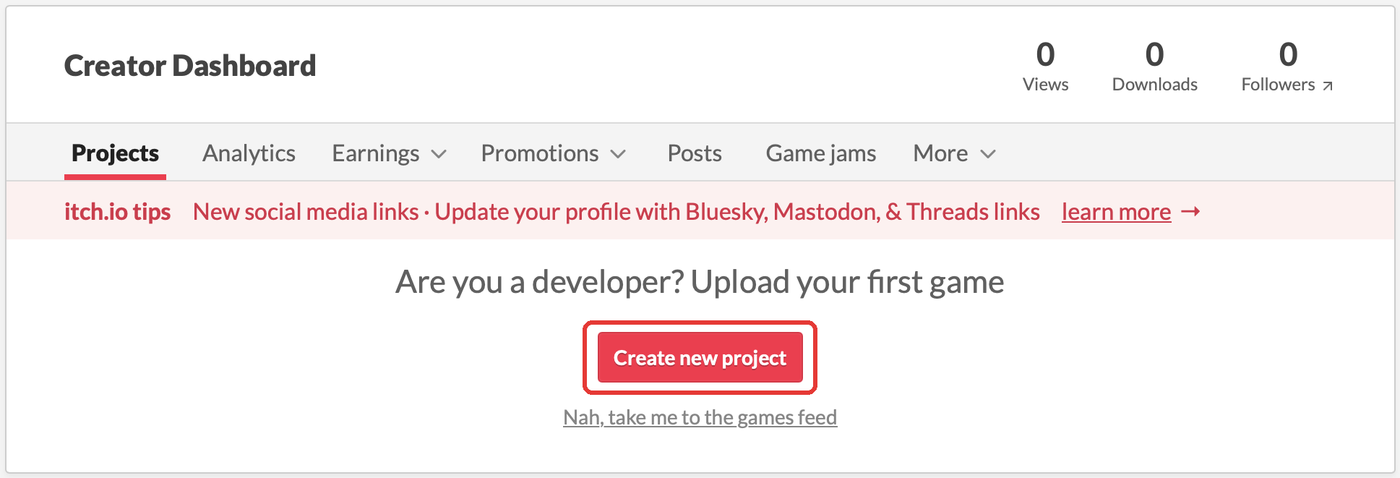
To create the project, click Create new project on your Creator Dashboard, or go straight to itch.io/game/new.
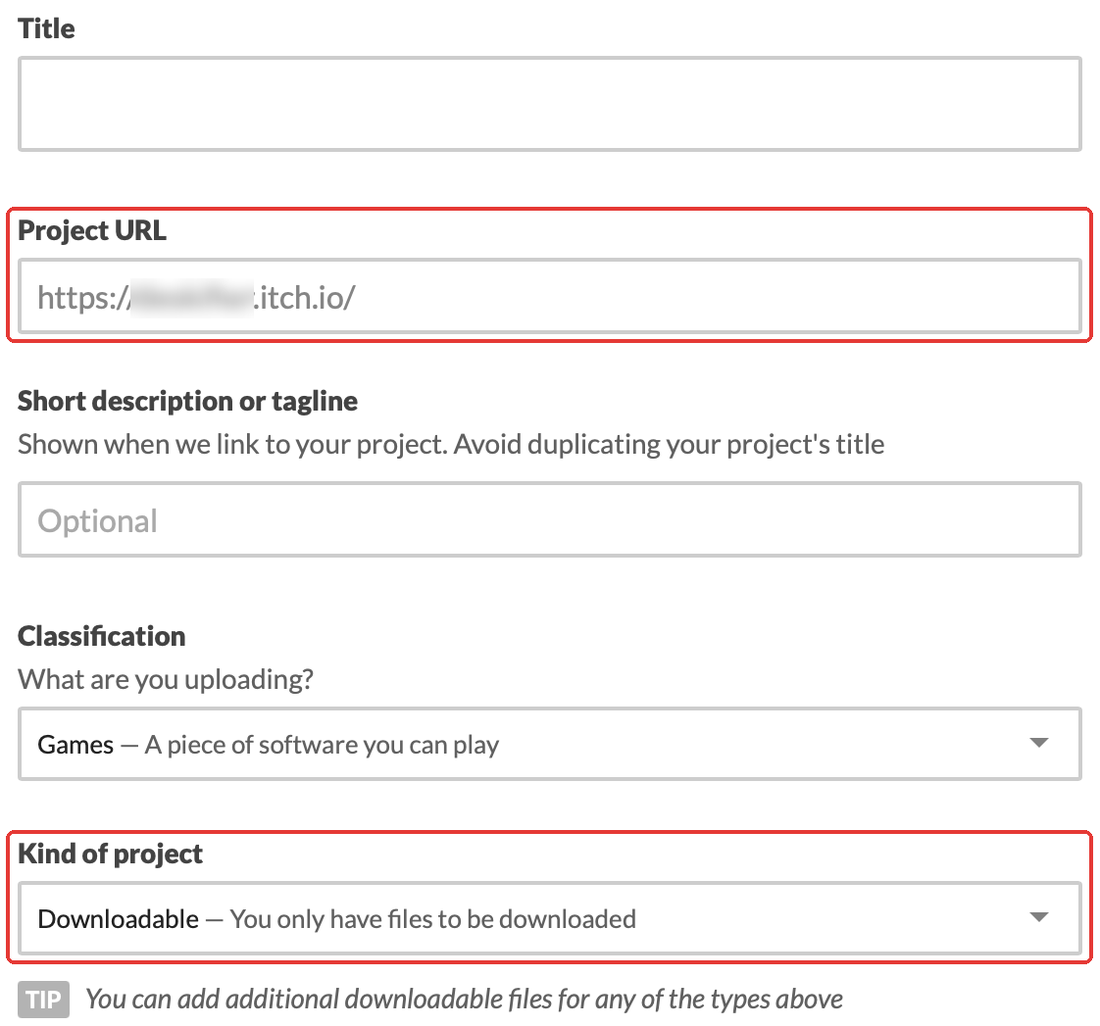
Give it your game's title, and under Kind of project choose Downloadable. A project set to "HTML" expects a web build and won't take a desktop upload the way you want.
The Project URL on that form is your project's address.
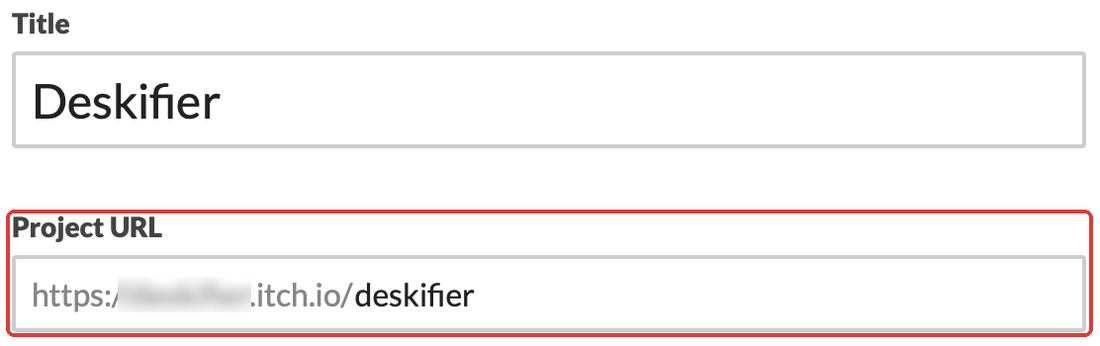
You'll need two identifiers from it. For https://yourname.itch.io/your-game:
- User:
yourname - Game:
your-game
Get an API key
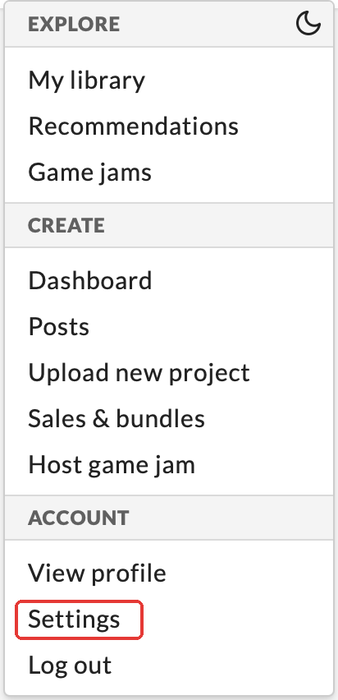
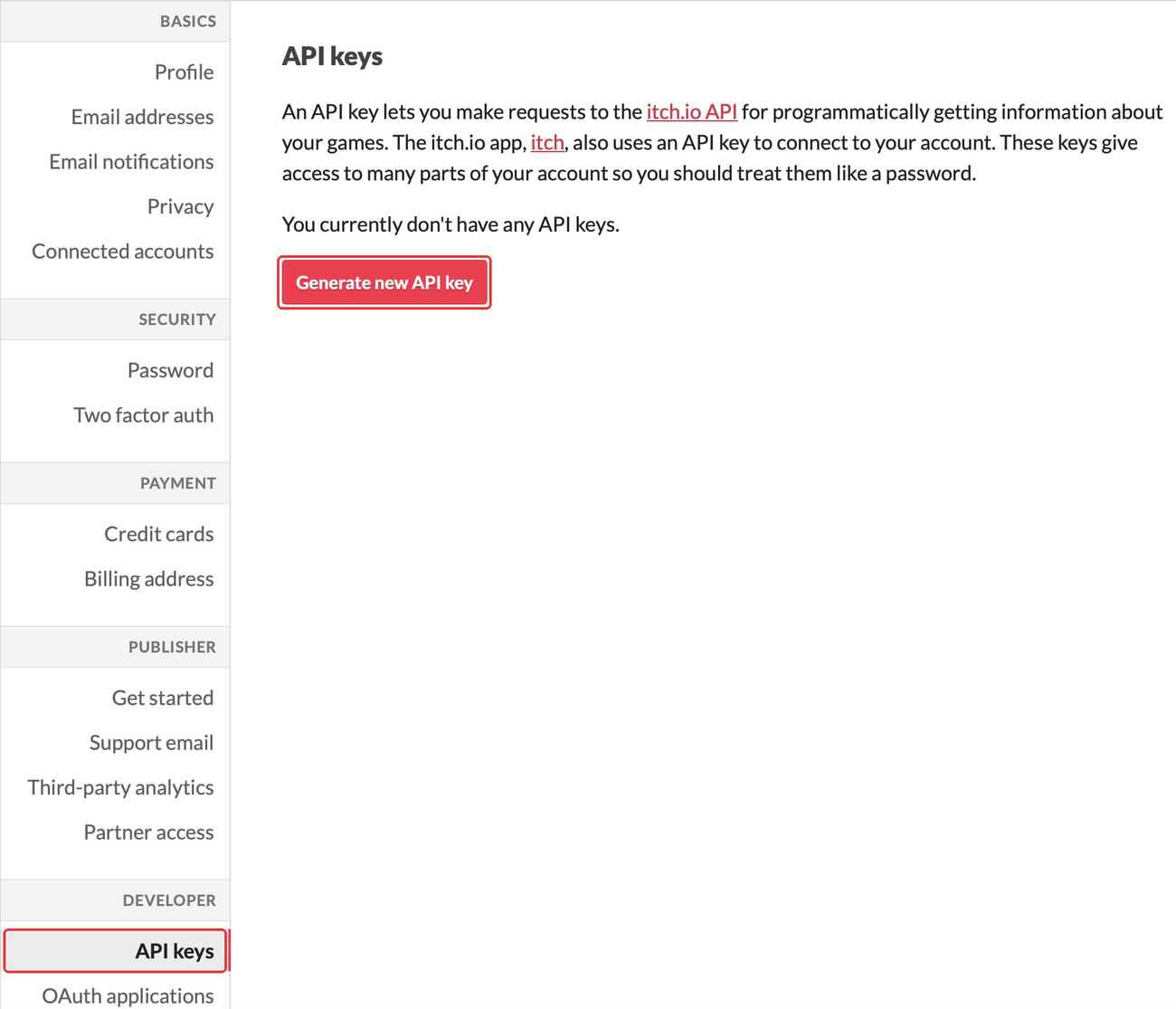
Open your account menu at the top right and choose Settings, or go straight to itch.io/user/settings/api-keys.
Under Developer, open API keys and click Generate new API key.
Your new key appears in the list. Copy it.
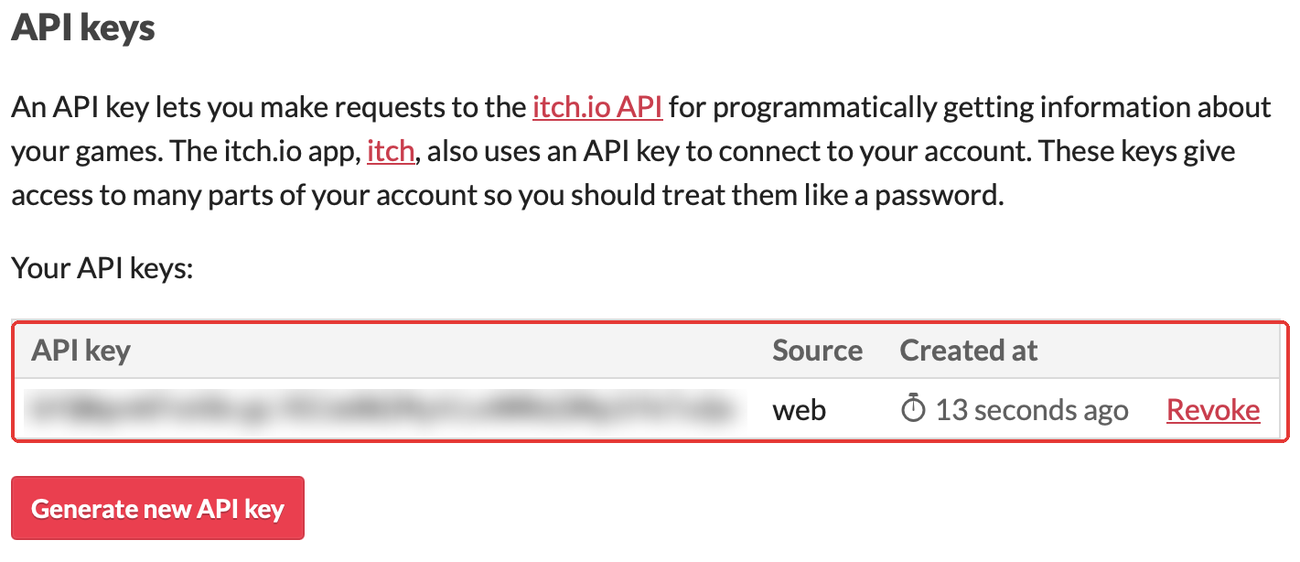
An itch API key has full access to your itch account, not just this project, because itch doesn't offer a publish-only scope. Store it only where you need it, and revoke it from that same page if you ever suspect it's been exposed. Deskifier keeps yours encrypted and never returns it to the browser after you save it.
Configure Deskifier
On the Builds page → Publish to stores → itch.io → Configure:
- Paste your API key.
- Enter the user and game from your project URL.
- Save.
Ship a release
Each platform has a Build & push button. That builds the game, packages it as a zip, and pushes it to a channel named for the platform:
| Platform | itch channel |
|---|---|
| Windows | windows |
| macOS | mac |
| Linux | linux |
Channel names matter: the itch app uses them to pick the right download for whoever is installing, and the download buttons on your project page get their platform tags from them. Deskifier sets them for you, so they're right as long as you push each platform from its own button.
The version butler records is your Deskifier build version, so itch's upload history lines up with your build history.
butler diffs against your previous upload on itch's side, so a small change to a large game uploads a small patch rather than the whole build. The first push of each platform is a full upload; the ones after it are usually much faster.
Dev builds don't push
Only production builds upload to itch. A dev build produces the artifact and stops, and says so in the log.
That's deliberate: dev builds are free, watermarked, and locked to your own Deskifier account, so they're the wrong thing to hand to players. Cut a production build when you want a release to land on your page.
Updates are itch's job
An itch build never updates itself. Deskifier's own updater is switched off in it at build time, and the SDK's deskifier.autoUpdate methods answer that updates are managed by the store; the itch app tracks the version it installed, and a build that replaced its own files would fight it.
Ship an update the same way you shipped the first build: Build & push. Players using the itch app get it on their next refresh; players who downloaded the zip directly download it again.
After the push
The upload appears under your project's Uploads. A few things are yours to set on itch, not ours:
- Pricing and visibility: a draft project stays invisible until you publish it, however many builds you push.
- Platform tags, if you want to override what the channel implies.
- Release notes / devlog: itch has no field butler can fill for this.
Troubleshooting
"itch push skipped: no credentials": the build ran without itch configured, or it was a dev build. Check the Configure modal, then cut a production build.
Butler rejects the target: the user/game pair must match the project URL exactly, and the API key must belong to an account with push access to that project.
The wrong download shows for players: check that each platform was pushed from its own button; a Windows build pushed to the mac channel will be offered to the wrong people.