Publishing to the Epic Games Store
Deskifier builds your game and uploads it to Epic with BuildPatchTool, Epic's own publishing CLI. You don't install the tool, and you don't download a build to upload it somewhere else: one button per platform on the Builds page does both.
The Epic setup on the Builds page walks you through all of this with the same screenshots, and saves as you go.
Before you start
You need an organization in Epic's Developer Portal. Sign in with your Epic account and create one for your studio if you haven't already.
Epic ships its launcher for Windows and macOS only, so those are the two platforms Deskifier offers. There is no Linux client for the Epic Games Store, which is why you won't find a Linux row.
Create your product
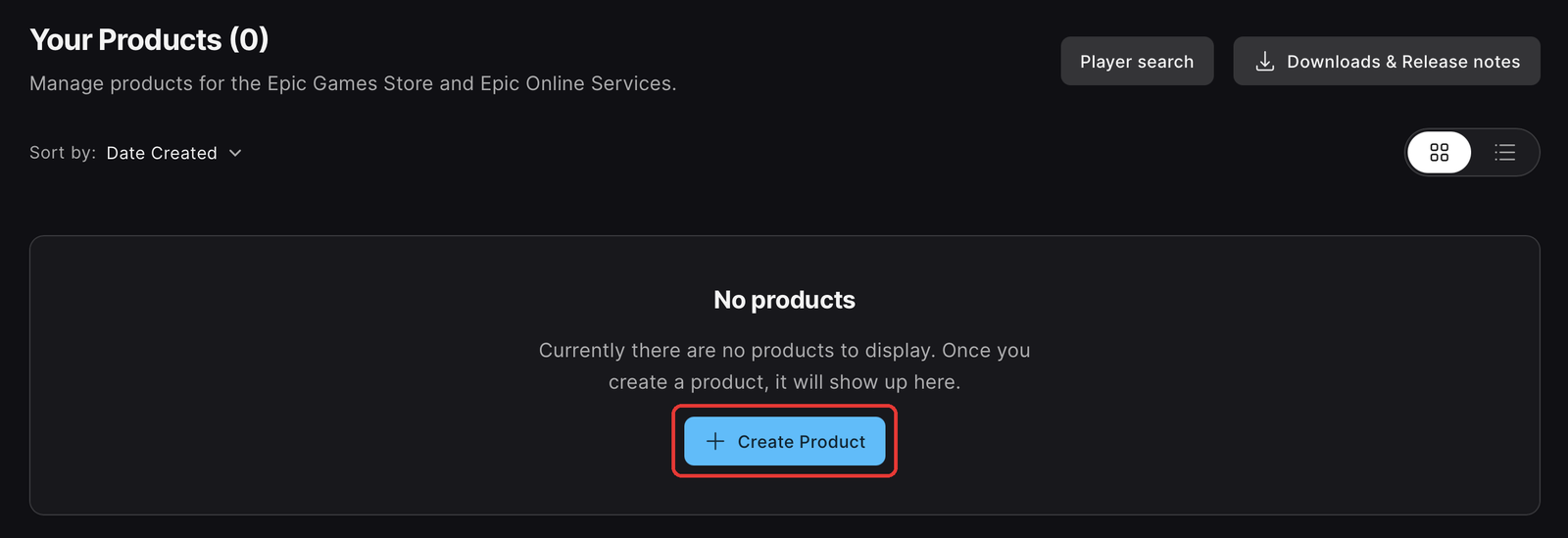
On the Developer Portal dashboard, under Your Products, click Create Product.
Enter your game's name and click Create.
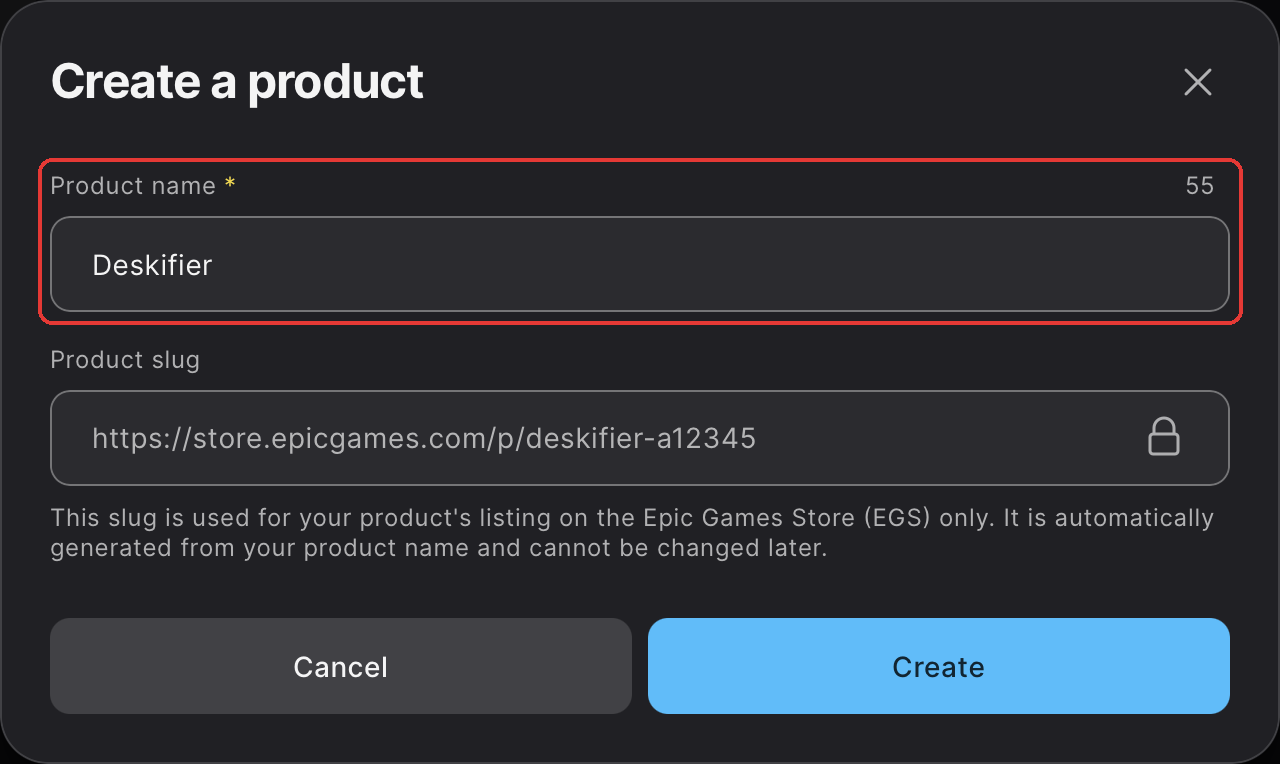
The name sets your store address (store.epicgames.com/p/…), and Epic won't let you change it later. Use your game's real name, not a placeholder.
Open the Epic Games Store
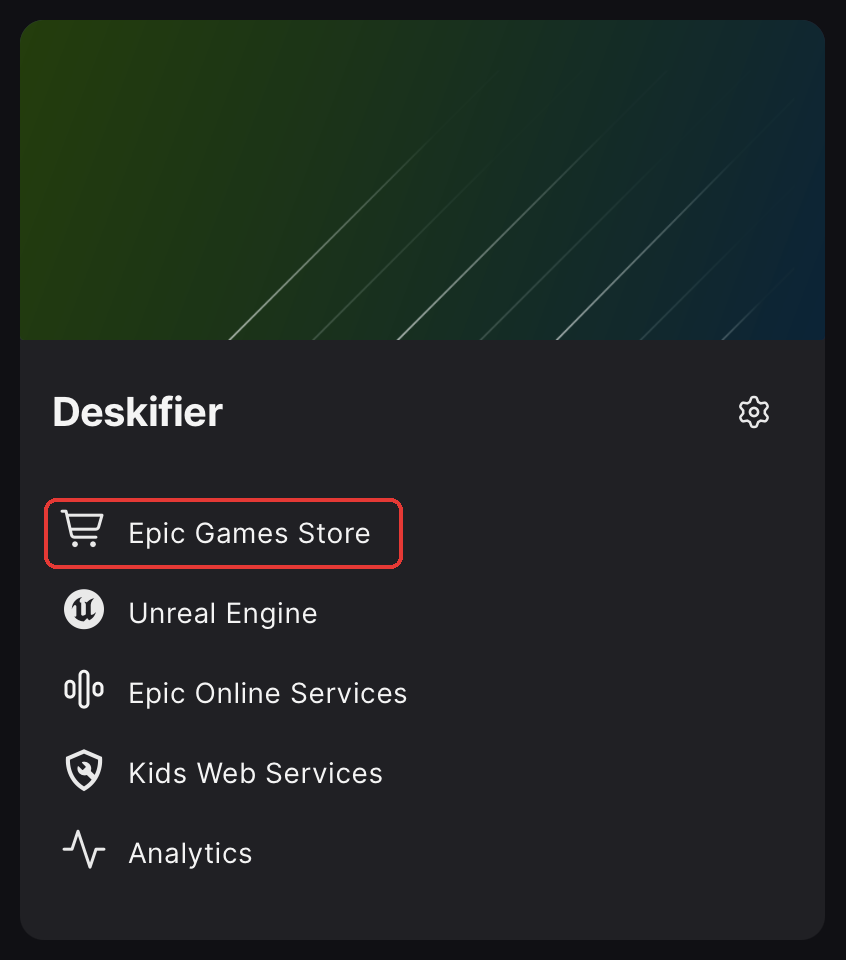
Your product now has a card on the dashboard. Click Epic Games Store on it, then accept Epic's terms.
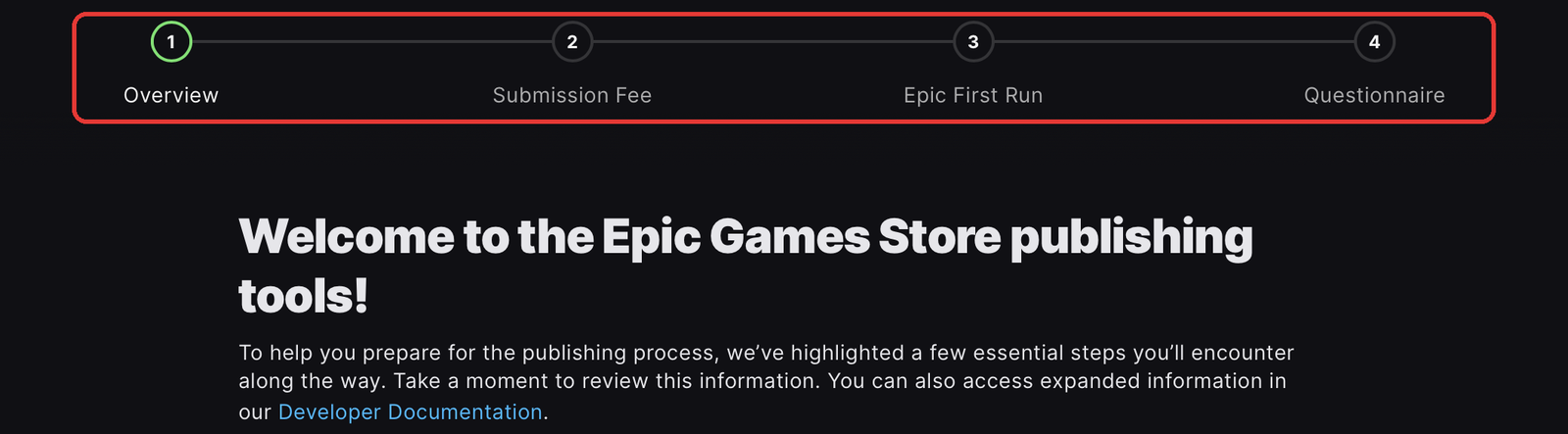
Epic then walks you through four onboarding stages before its publishing tools open up:
- Overview: Epic's store requirements.
- Submission Fee: $100 per game, paid to Epic.
- Epic First Run: Epic's launch program for new games.
- Questionnaire: a few questions about your game.
Get your IDs
Deskifier needs three IDs from Epic, and they're all in one place: your artifact's command line template.
In your product's Epic Games Store section, open Artifacts and Binaries in the sidebar, then click Edit on the Artifacts and Binaries card.
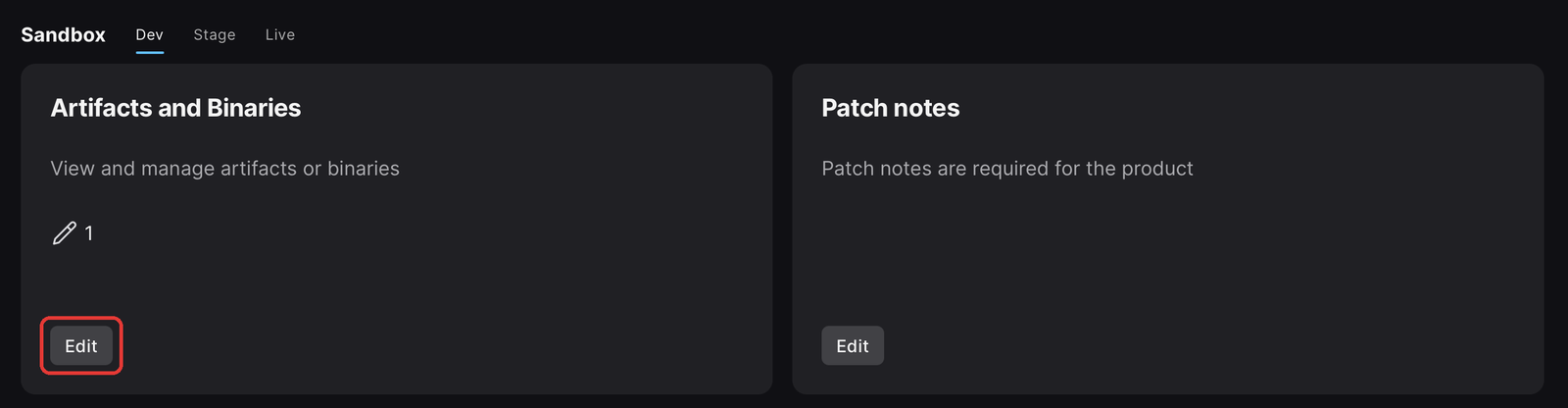
Epic made one artifact for your game already, named after it. It holds your builds for every platform. Click the pencil at the end of its row.

In the panel that opens, choose the Instructions tab and click the copy button on Command line template for this artifact.
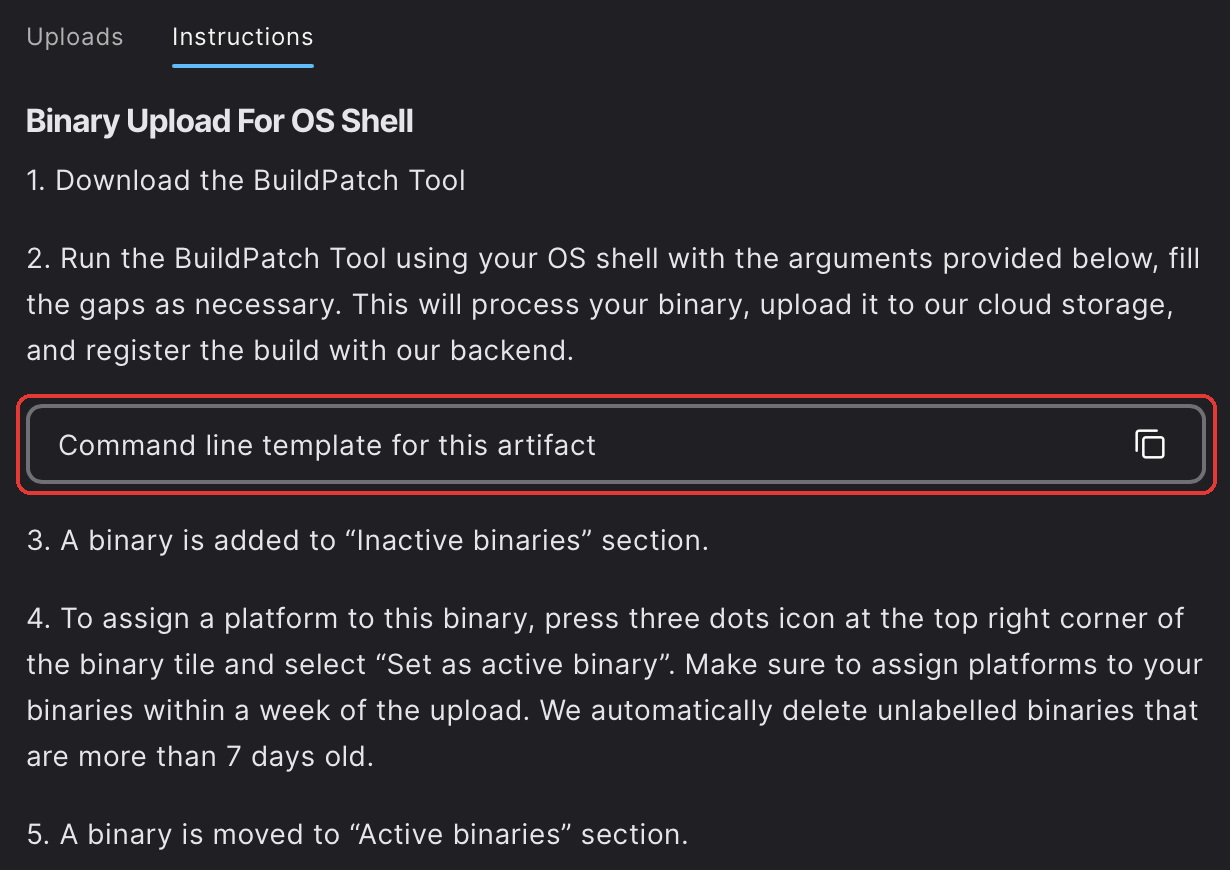
The template is a BuildPatchTool command with your Organization ID, Product ID and Artifact ID filled in. Paste the whole thing into Deskifier and it picks the three out.
Get your BuildPatch Tool credentials
Back on the Developer Portal dashboard, click the gear on your product's card.
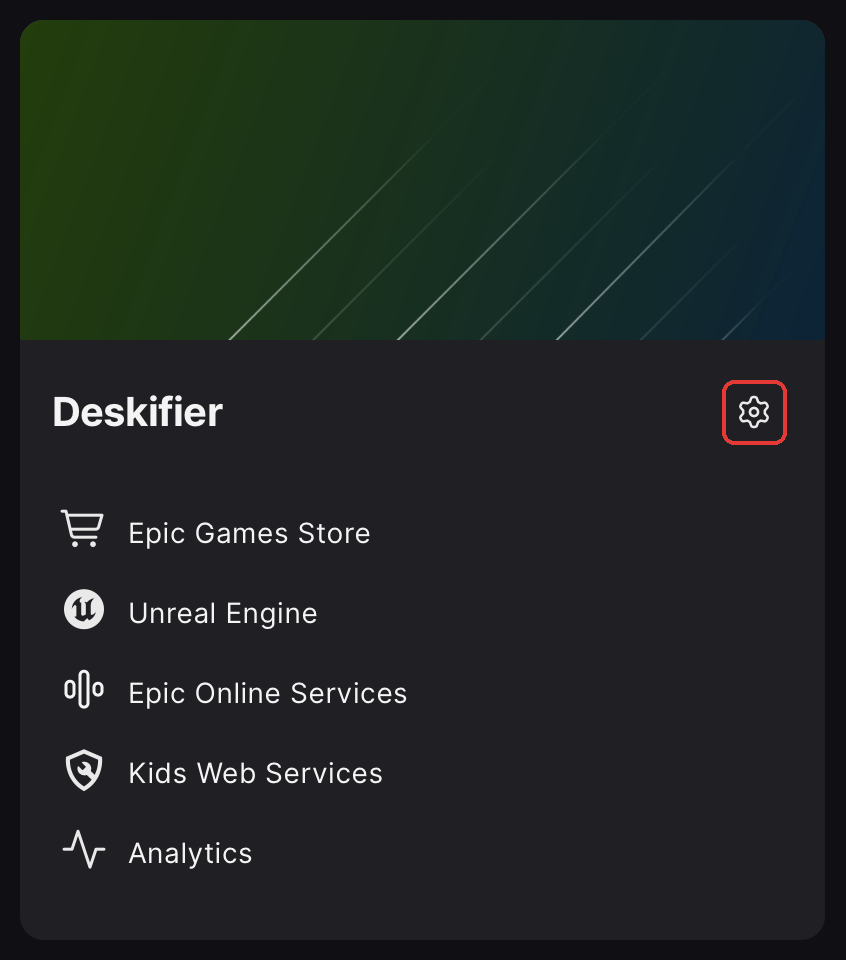
Choose the BPT credentials tab. Epic made a BuildPatch Tool client for your product; copy its Client ID and Client Secret.
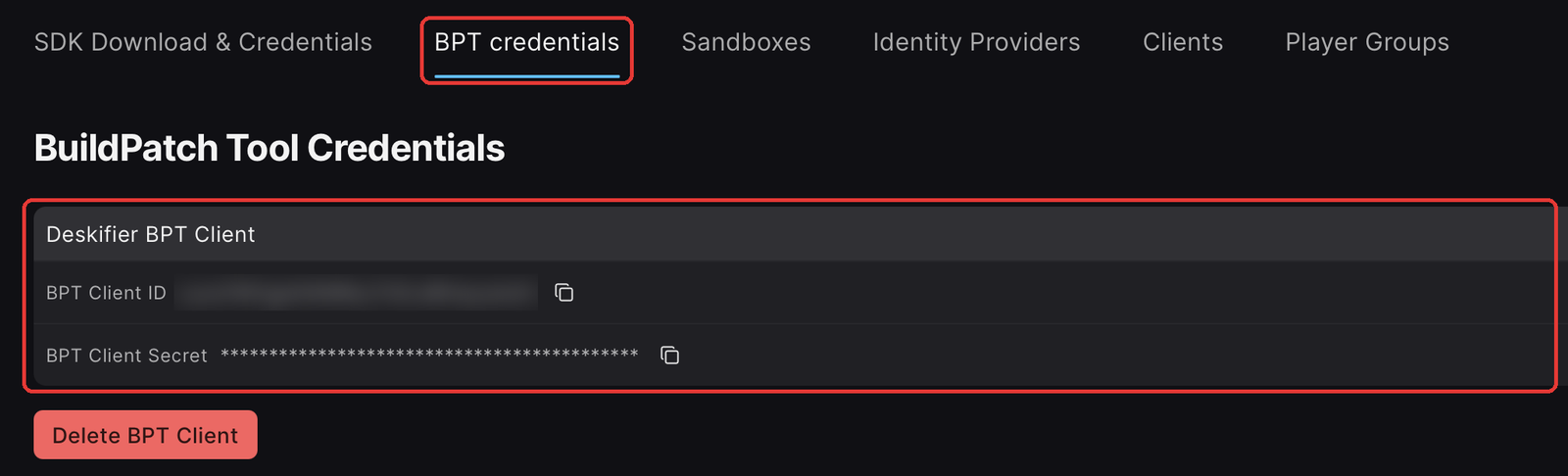
The client secret is scoped to your organization rather than a single game, so treat it the way you'd treat any org-level key. Deskifier stores it encrypted and never returns it to the browser after you save it.
Configure Deskifier
On the Builds page, open Epic Games Store and follow the setup, or choose Configure if you've done this before. Paste the command line template, then the client ID and secret, and save.
Ship a release
Each platform has a Build & push button. That builds the game, packages it, and uploads it to your artifact. The row tells you where it is: building, uploading, then the version that landed.
Windows and macOS builds go to the same artifact, so Deskifier gives each its own build version: 1.2.0-win and 1.2.0-mac for version 1.2.0.
Each upload arrives in your artifact as an inactive binary, marked Scheduled for deletion. To keep it:
Open Artifacts and Binaries, then your artifact. The upload is under Inactive, named with its build version.
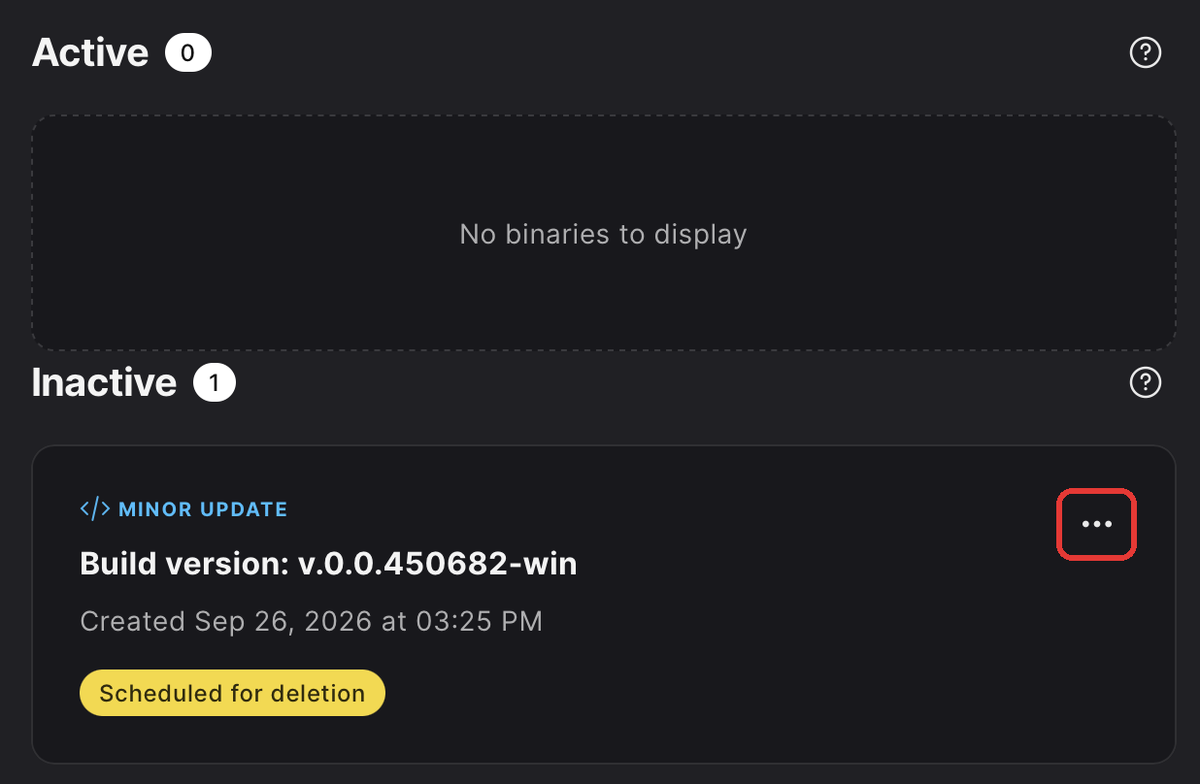
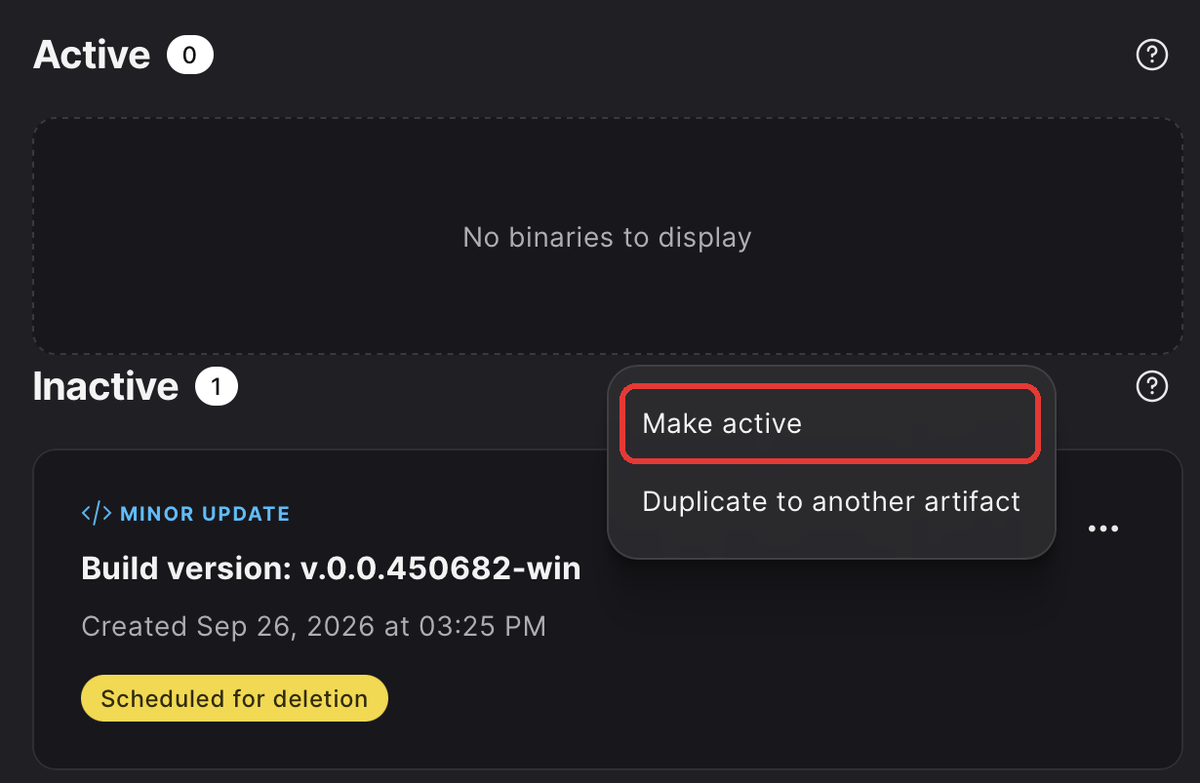
Open its ⋯ menu and choose Make active.
Pick an update type (Bugfix, Minor or Major), tick its platform (Windows for a
-winbuild, Mac for-mac) and save.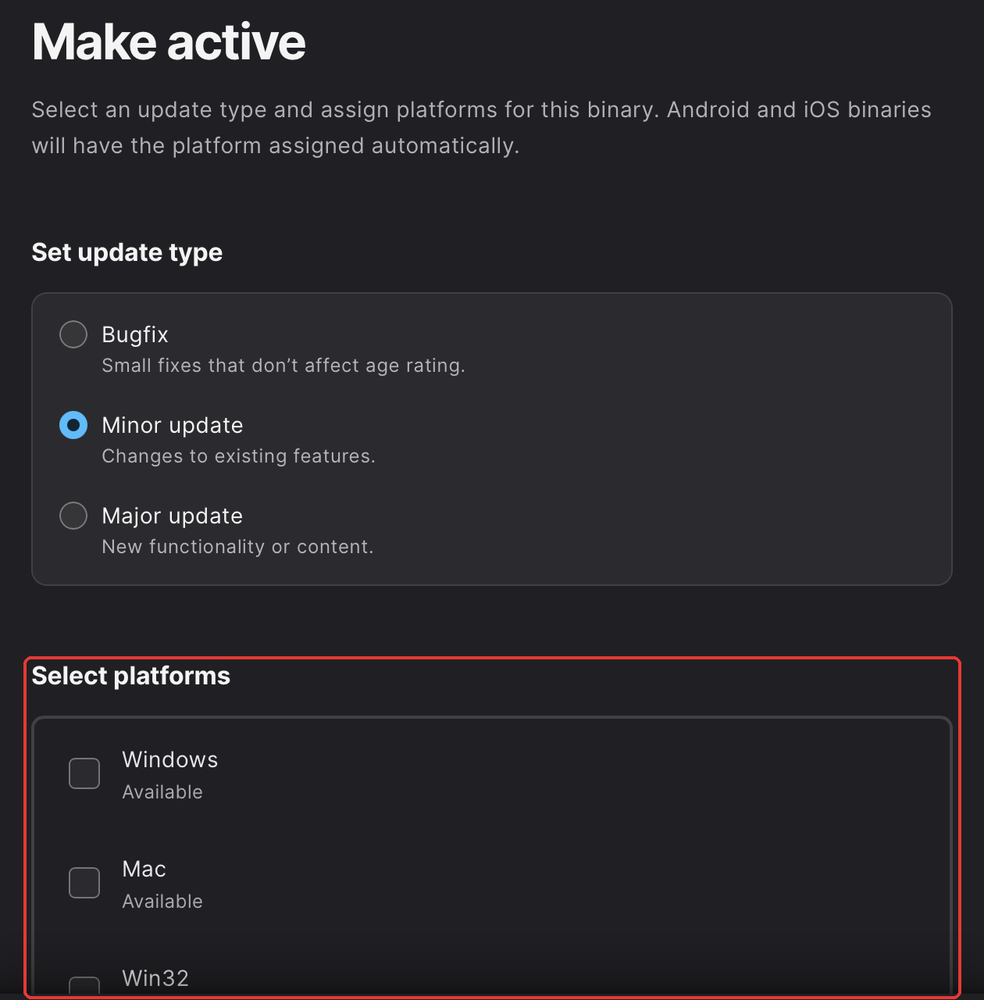
Do this within 7 days of the upload. Epic deletes inactive binaries that are more than 7 days old.
BuildPatchTool chunks and diffs against your previous upload, so a small change to a large game uploads a small patch rather than the whole build. The first upload of each platform is a full one.
Updates are Epic's job
An Epic build never updates itself. Deskifier's own updater is switched off in it at build time, and the SDK's deskifier.autoUpdate methods answer that updates are managed by the store. The Epic launcher patches the game from the build you uploaded, and a build that replaced its own files would fight it.
Ship an update the same way you shipped the first build: Build & push, then make the new binary active in Epic.
Troubleshooting
"Epic is not configured": no credentials saved for this app yet. Add them from the Builds page.
My upload disappeared from Epic: it was probably left inactive for more than 7 days. Push it again and make it active.
"Epic rejected the client ID or secret": copy them again from Product Settings → BPT credentials, and save them in Deskifier.
"Epic couldn't find that product or artifact": the IDs don't match what this client can upload to. Paste the command line template again from your artifact's Instructions tab.
"Epic already has a build with this version": every upload needs a new version. Bump your app's version and push again.
"BuildPatchTool isn't available to the uploader": an operational problem on our side rather than yours, and we're alerted when it happens.
"No .exe found at the top of the build" (or no .app bundle): Epic needs to know what to launch, and Deskifier picks it from the packaged build. This normally means the build produced something unexpected, so it's worth a look at the build log.
References
Epic Games Store: BuildPatchTool instructions