Publishing to the Mac App Store

Publish your Deskifier app to the Mac App Store

Once you've successfully built your app in the Deskifier dashboard, follow these steps to create your app store listing.

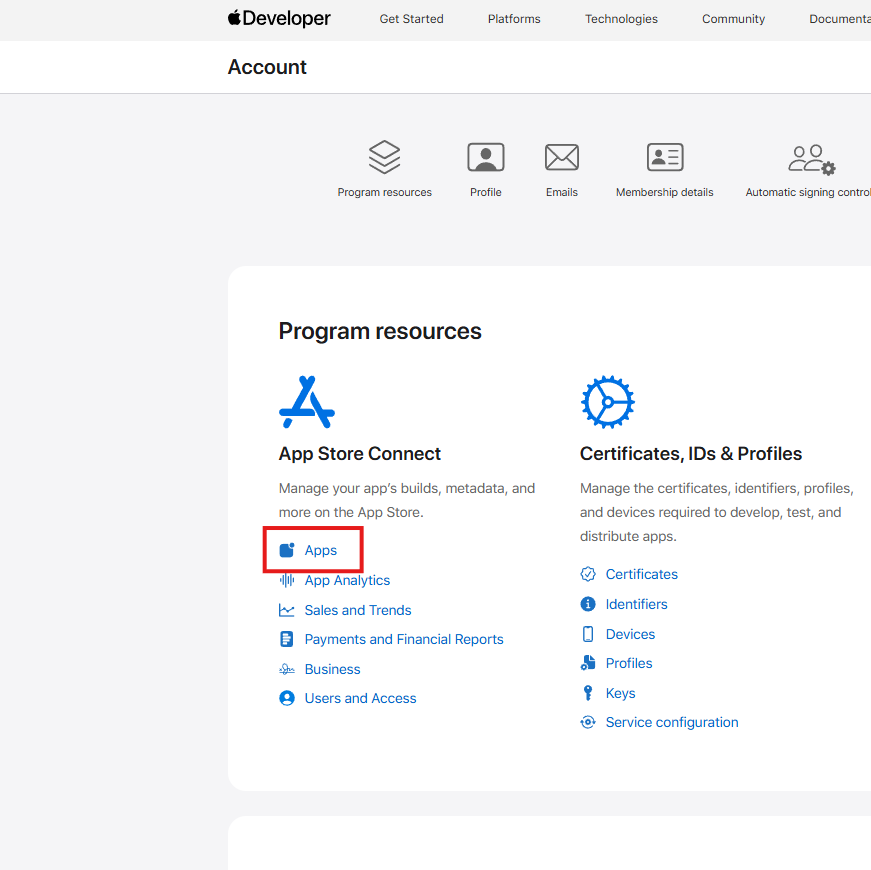
  1. Navigate to the Apple developer portal and click Apps.
<figure><img src="https://1039481726-files.gitbook.io/~/files/v0/b/gitbook-x-prod.appspot.com/o/spaces%2FaEnaAl6e7qhRH1HWZmjS%2Fuploads%2FR7xBs94DZ5e6DuzdFJkD%2Fimage.png?alt=media&token=b0775ab7-4077-415b-bcd1-5b038bac10ce" alt="Apps tab in the Apple developer portal"></figure>

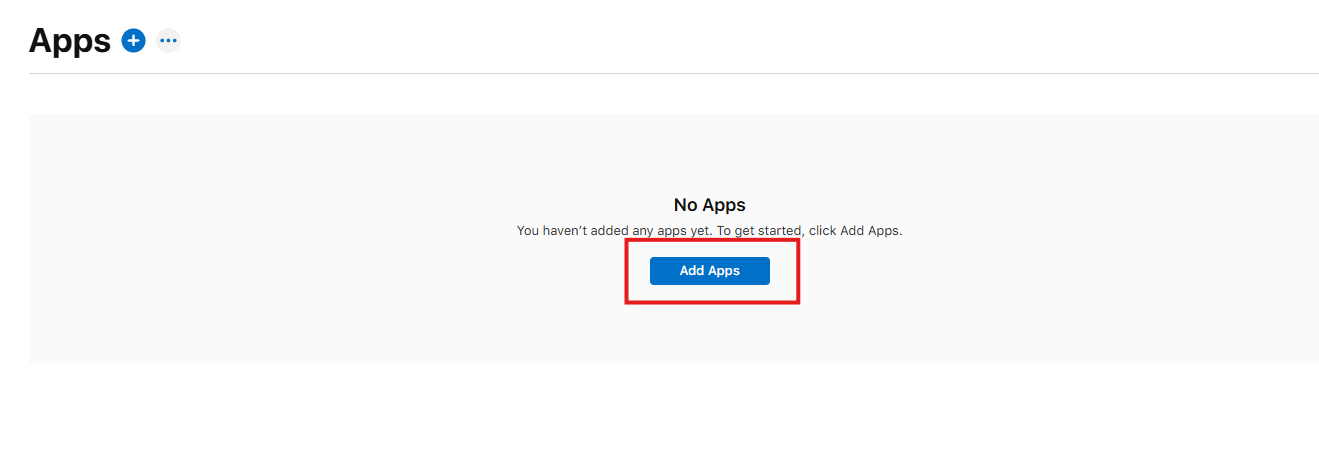
  1. Click Add Apps.

<figure><img src="https://1039481726-files.gitbook.io/~/files/v0/b/gitbook-x-prod.appspot.com/o/spaces%2FaEnaAl6e7qhRH1HWZmjS%2Fuploads%2F7T2OiONBCoF4gdu2pFQt%2Fimage.png?alt=media&token=fd3ef357-ecd8-4ba0-b80b-805270d13510" alt="Add Apps button"></figure>

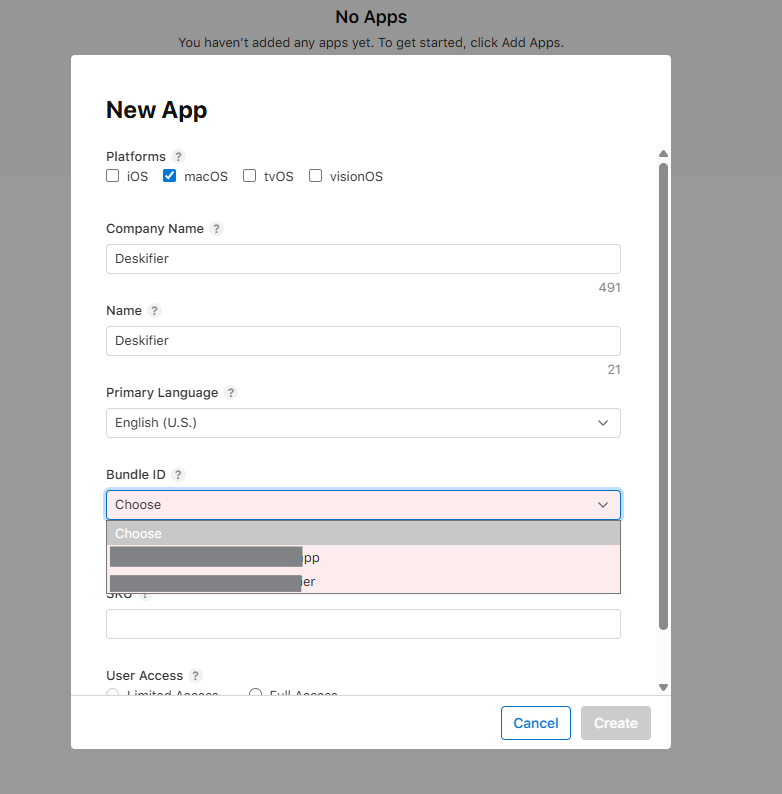
  1. Fill out your app's information. Under Bundle ID, you should see the Bundle ID you added inside the Deskifier dashboard.
<figure><img src="https://1039481726-files.gitbook.io/~/files/v0/b/gitbook-x-prod.appspot.com/o/spaces%2FaEnaAl6e7qhRH1HWZmjS%2Fuploads%2FD3hYC9qghLxaGQzmmxUy%2Fimage.png?alt=media&token=9248c5e0-5437-4bbf-a40b-aabb27e32533" alt="App information form"></figure>

  1. Once you've created your app listing, you can then proceed to upload your app (or start your build) from the Deskifier dashboard.

<figure><img src="https://1039481726-files.gitbook.io/~/files/v0/b/gitbook-x-prod.appspot.com/o/spaces%2FaEnaAl6e7qhRH1HWZmjS%2Fuploads%2FGA36NbgBco4mKj2PkuHH%2Fimage.png?alt=media&token=57153c62-920a-4fda-9509-382f4751f510" alt="Start build in the Deskifier dashboard"></figure>

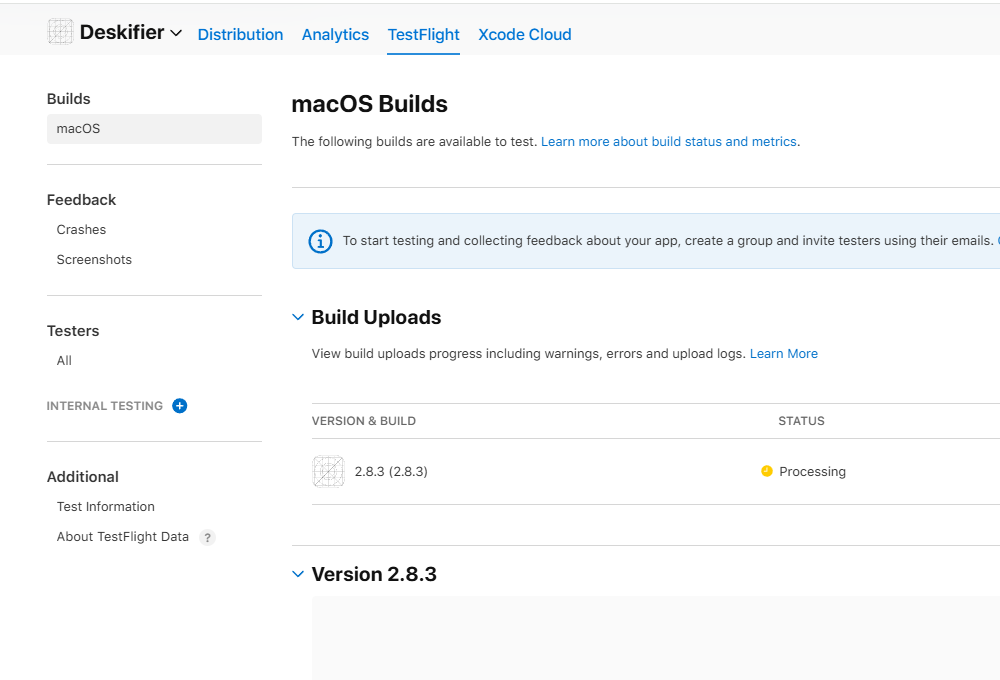
  1. Once your app has been uploaded by Deskifier, you will see it appear in your macOS builds.
<figure><img src="https://1039481726-files.gitbook.io/~/files/v0/b/gitbook-x-prod.appspot.com/o/spaces%2FaEnaAl6e7qhRH1HWZmjS%2Fuploads%2Fwjw3PruojF7KpWR5ipG1%2Fimage.png?alt=media&token=7ef7044a-9614-4d37-bcbb-5cda084b2651" alt="Uploaded build in App Store Connect"></figure>