App Store Connect API
Connect Your Apple Developer Account
To build and sign your desktop app for the Mac App Store, Deskifier needs permission to communicate with Apple on your behalf. This is done securely using the App Store Connect API.
- Log in to App Store Connect.
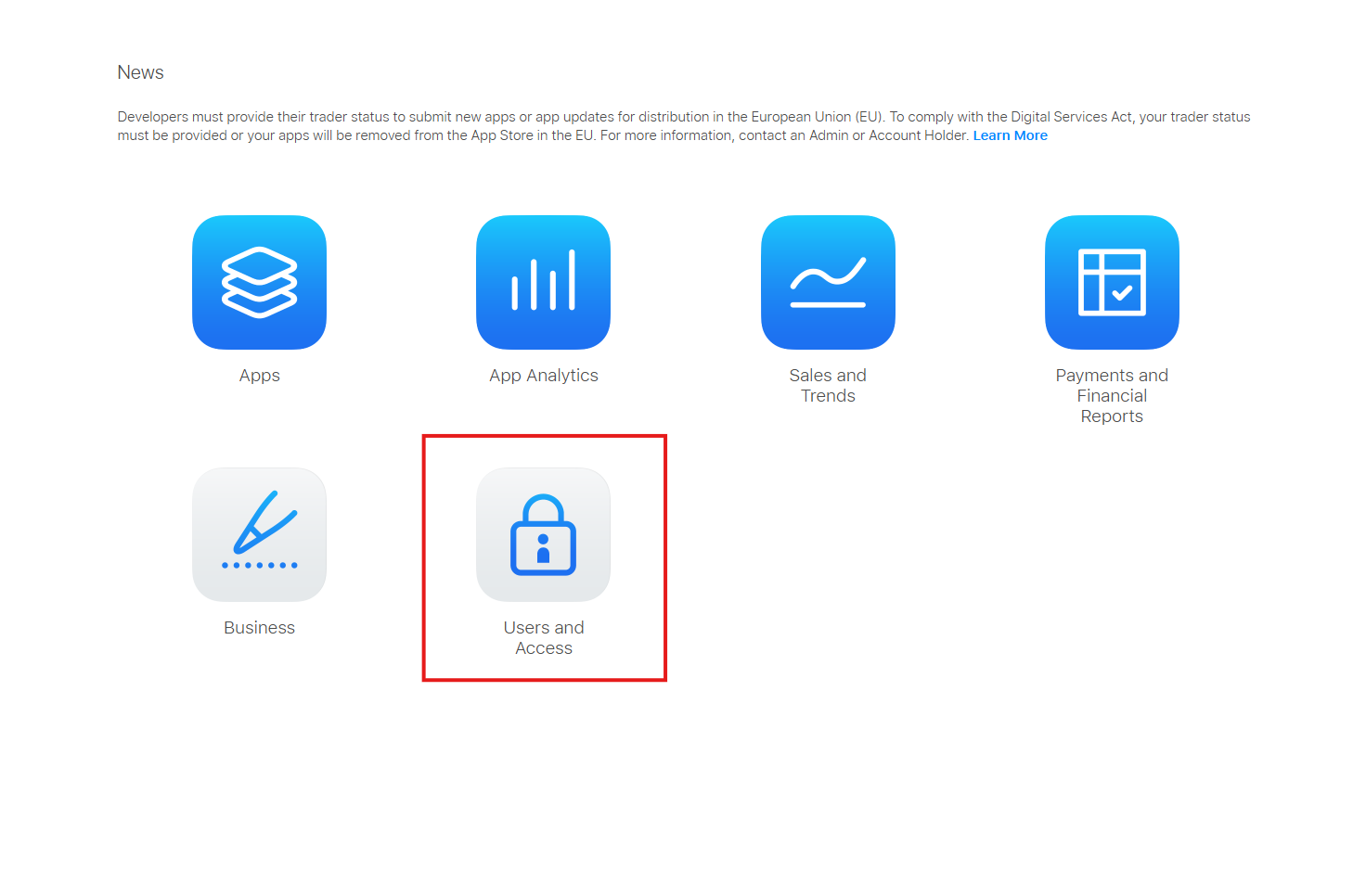
- Click on the Users and Access icon.
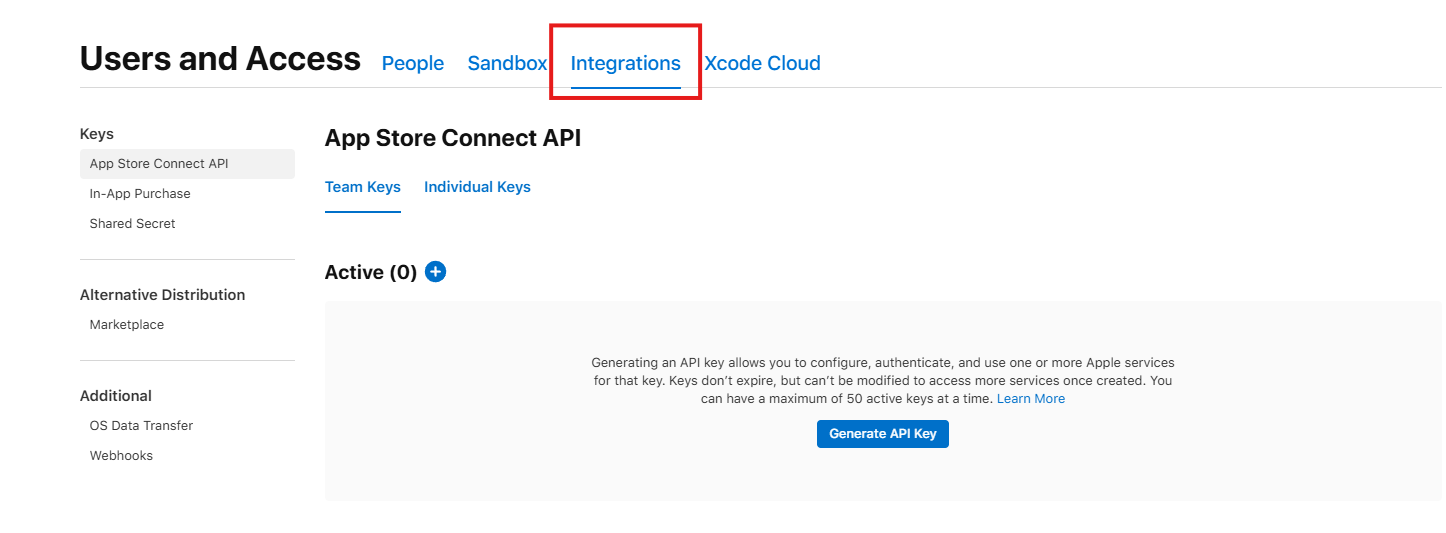
- Navigate to Integrations
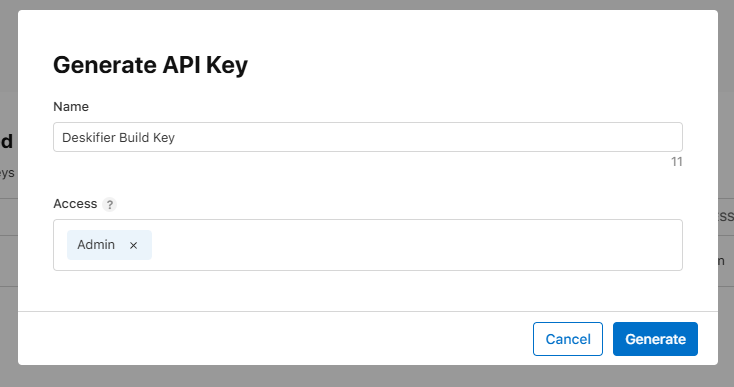
- Click "Generate API Key", enter a name for your API key & set the access level to "Admin"
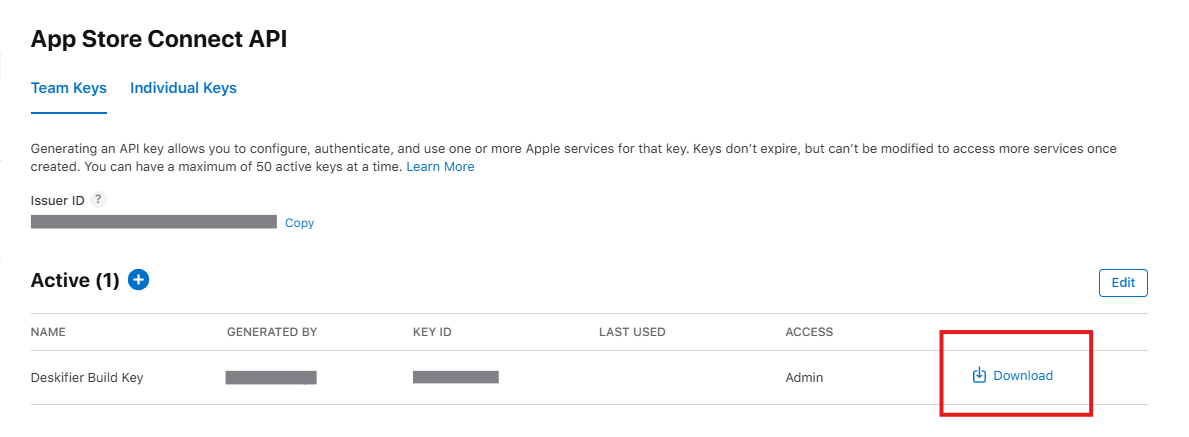
- Once the key is generated, you will see it listed in the table.
- You need to copy/download three specific items to paste into the Deskifier dashboard:
- Issuer ID: Found at the top of the page.
- Key ID: Found in the table next to your new key.
- Private Key (.p8 file): Click the Download API Key link in the table.
Security Note: Deskifier uses these credentials solely to automate the code-signing process required by Apple. Your .p8 key is encrypted at rest and is never shared with third parties. You can revoke this key at any time from your Apple Developer dashboard to instantly cut off Deskifier's access.