How to Put an HTML5 Game on Steam (With Achievements)
Getting a Phaser, Construct, PixiJS or Three.js game onto Steam, step by step. The Steam Direct fee, native builds, depots and SteamPipe, achievements and cloud saves from JavaScript, and testing with App ID 480.
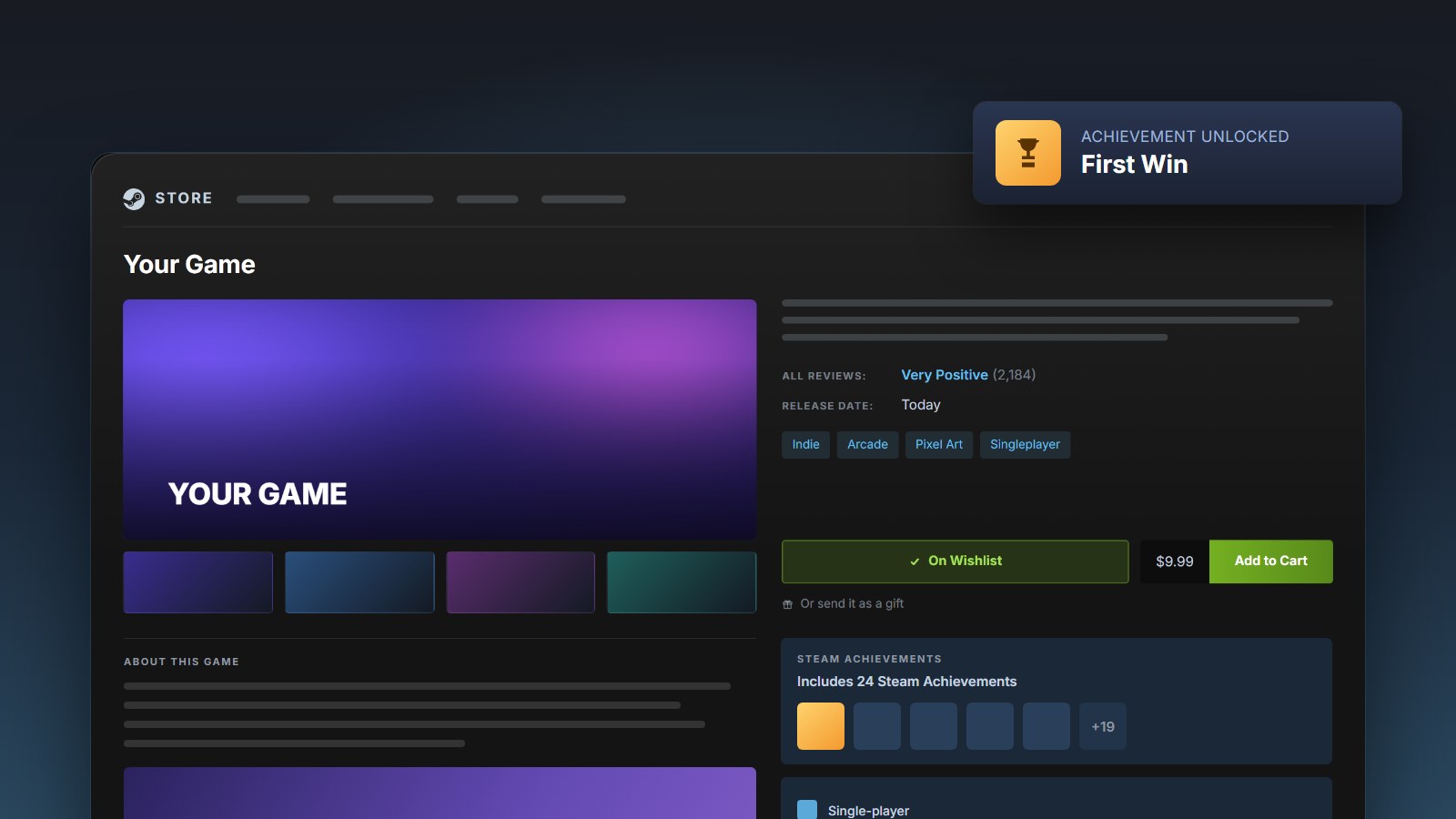
Yes, you can sell an HTML5 game on Steam. Valve reviews the game, not the engine, and a meaningful slice of the Steam catalog is JavaScript running in a desktop wrapper. What Steam needs is a real download for Windows, macOS or Linux that installs and launches like any other game. This guide covers getting from "runs in the browser" to "live on Steam", including achievements.
What you need
- A Steamworks account and the app fee. Sign up as a partner at partner.steamgames.com and pay Steam Direct's fee of $100 per game. Valve pays it back once the game makes $1,000 in gross revenue.
- A desktop build of your game for each platform you'll ship on. Steam can't run an
index.html; you need it wrapped in an app (more below). - A store page and Valve's review. Your store page and your build are each reviewed before release, and a "coming soon" page has to be live for at least two weeks before launch.
Step 1: turn your game into a desktop build
Your game's HTML, JavaScript and assets go inside a desktop runtime, usually one that bundles Chromium so it plays exactly as it does in Chrome. Your options, from most to least work:
- Electron or NW.js yourself. Full control. You write the startup code, add a Steamworks library, and package one build per platform. Building for Mac needs a Mac.
- A packaging tool, such as GemShell or Deskifier, which takes your game folder and produces the builds. We compare them all in every way to turn an HTML game into a desktop app.
- Your engine's export. Construct and GDevelop can export desktop builds and have Steam plugins.
Bundle your files; don't load a URL. A Steam build should carry the game inside it, so it works offline and Steam controls which version players have. Steam installs aren't code-signed the way direct downloads must be, because Steam itself is the trusted installer.
Step 2: wire up Steamworks (optional, but players expect it)
Achievements, stats, cloud saves and the overlay come from Valve's Steamworks SDK, which is native C++. A browser game can't call it directly; something in the desktop wrapper has to load it and hand the calls to your JavaScript.
Doing it yourself. For Electron and NW.js there are two community libraries:
- steamworks.js is the more modern of the two, with a clean promise API. Its last npm release was in 2024, and pull requests adding leaderboards and more cloud features haven't been merged.
- greenworks is older and broader. Its README says it's maintained on a best-effort basis.
Both work. Expect to spend time on the Steam overlay (Shift+Tab): under Electron it depends on particular Chromium switches and starting Steam before the window opens. "Overlay doesn't show" is the most common issue people raise.
With Deskifier. Turn on Steam in the dashboard, enter your App ID, and call it from your game's JavaScript. There's no native code and nothing to install:
// Unlock an achievement (Steam shows the toast)
await window.deskifier.steam.activateAchievement({ name: 'ACH_FIRST_WIN' });

// Track a stat
await window.deskifier.steam.setStat({ name: 'runs_completed', value: 12 });
await window.deskifier.steam.storeStats();

// Sync a save across the player's machines
await window.deskifier.steam.cloudWrite({ name: 'save.json', content: JSON.stringify(save) });

// Tell friends what the player is doing
await window.deskifier.steam.setRichPresence({ key: 'text', value: 'Sector 7, wave 12' });
Off Steam, every call resolves with success: false instead of throwing, so the same code runs in your itch.io and browser builds. The full API is in the Steam docs.
Cloud saves without code. If your game saves to localStorage or IndexedDB, you can skip the cloud calls. Deskifier copies browser storage to a GameSaves folder on disk, and Steam's Auto-Cloud can sync that folder. Set it up in Steamworks under Steam Cloud.
Step 3: test before Valve approves you
You don't need your own App ID to start. App ID 480 is Spacewar, Valve's public test app, and every Steam account can use it. Achievements, stats and the overlay all work against it. Build with 480, check your achievement calls fire, then switch to your real App ID once Valve issues it.
The Steam client must be running and logged in when you launch the game, or Steamworks won't start.
Step 4: upload with SteamPipe
Steam distributes games as depots, usually one per operating system. You upload builds to them with SteamPipe:
- The manual way: download the Steamworks SDK, write
app_buildanddepot_build.vdfscripts, and runsteamcmdto upload. It works, it's scriptable, and it's fiddly the first time. - With Deskifier: add your depot IDs and connect a Steam builder account (one with only the publish permission), then press Build & push on the Builds page. Each platform goes to its own depot. The publishing guide covers it step by step.
Either way, the upload lands in Steamworks; you then set it live on a branch. Valve requires a person to set the default branch live by hand, so nothing goes out to players by accident.
Step 5: updates
Steam handles updates. Upload a new build, set it live, and Steam patches every player's install, downloading only what changed. Make sure your wrapper's own auto-updater is off in Steam builds, or the two will fight. Deskifier switches its updater off for Steam builds automatically.
Checklist
- Steamworks partner account, $100 app fee paid
- Desktop build per platform, with the game files bundled inside
- Achievements and stats defined in Steamworks, and called from your game
- Tested with App ID 480, then your real App ID
- Depots created, builds uploaded, store page live for two weeks
- Build reviewed and set live
Want to try it on your own game? Create a game app, upload your build, and make a free dev build with Steam turned on and App ID 480. More on Steam features on our HTML5 games on Steam page.