Electron Frameless Windows: Custom Titlebars That Actually Work
Drag regions, traffic lights, window controls and the click-through bugs nobody warns you about. A practical guide with working code for macOS, Windows and Linux.
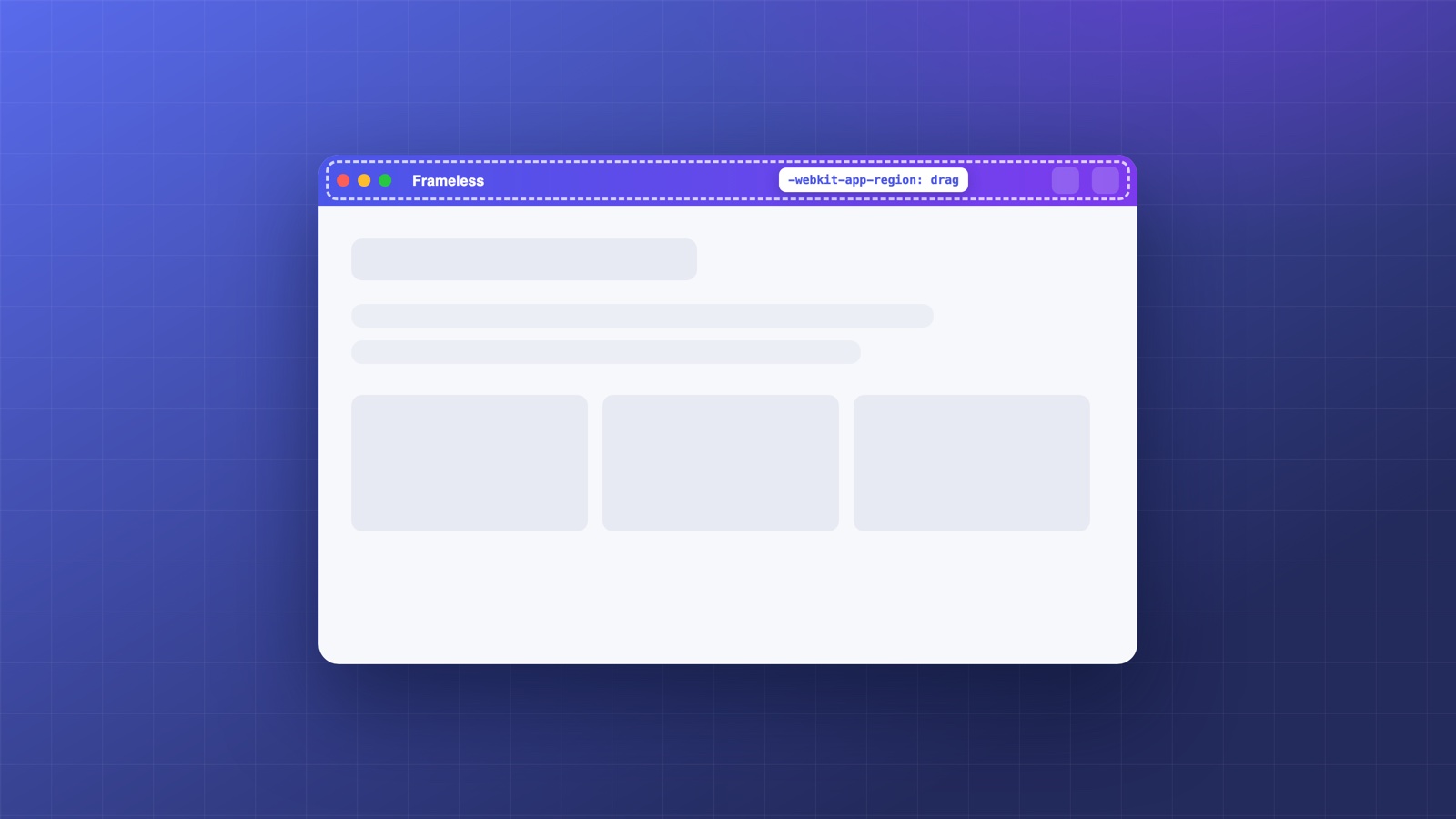
Every polished desktop app seems to have one: a window where the web content runs edge to edge and the titlebar is part of the design instead of an OS-issued gray bar. Electron makes the first step easy and hides every subsequent one. This guide covers the whole path, including the parts that only bite after you ship.
Frameless vs hidden titlebar: pick the right mode
There are two different tools here, and choosing wrong costs you a rewrite:
// Mode 1: fully frameless. No titlebar, no window controls, nothing.
new BrowserWindow({ frame: false });

// Mode 2 (macOS): keep the traffic lights, hide everything else.
new BrowserWindow({ titleBarStyle: 'hidden' });

// Mode 3 (Windows/Linux): hide the frame but keep native window controls
// drawn over your content.
new BrowserWindow({
  titleBarStyle: 'hidden',
  titleBarOverlay: { color: '#00000000', symbolColor: '#1f2330', height: 36 },
});
Fully frameless (frame: false) means you now own minimize, maximize and close on every platform. Mode 2 and 3 keep the native controls, which users trust and which handle every edge case (snap layouts on Windows 11, double-click behaviors, accessibility) for free. Unless you are building something truly exotic, start with modes 2 and 3.
Drag regions: the part everyone gets wrong first
A frameless window is not draggable until you say which part of it drags. That is a CSS property, applied in your web content:
.titlebar {
  -webkit-app-region: drag;
}
.titlebar button, .titlebar input, .titlebar a {
  -webkit-app-region: no-drag;
}
Three traps hiding in those five lines:
- Everything inside a drag region becomes unclickable. Buttons, inputs, dropdowns: clicks are swallowed by the drag handler. Every interactive child needs an explicit
no-drag, and you will forget one. When a button mysteriously ignores clicks in a frameless window, this is why. - Right-click and text selection die too. Drag regions eat context menus and selections. Keep them to genuinely empty chrome, not content areas.
- The drag region must exist at load time. If your titlebar renders after a client-side route change or a loading state, the window is undraggable until it appears. Render the bar unconditionally and fill in its content later.
Clearing the traffic lights and window controls
With titleBarStyle: 'hidden', the OS draws its buttons on top of your DOM. Your layout needs to route around them, and hardcoding pixel offsets breaks the moment anything changes (fullscreen, RTL, a Windows accessibility setting that widens the controls).
The robust answer is the Window Controls Overlay API, which reports exactly where the safe area is:
function titlebarInsets() {
  const wco = navigator.windowControlsOverlay;
  if (wco?.visible) {
    const rect = wco.getTitlebarAreaRect();
    return {
      left: rect.x,
      right: window.innerWidth - rect.x - rect.width,
    };
  }
  // macOS 'hidden' style without an overlay: standard traffic light width.
  return { left: 80, right: 0 };
}

navigator.windowControlsOverlay?.addEventListener('geometrychange', applyInsets);
Pad your header by those insets and it survives fullscreen transitions, DPI changes and future OS versions. On macOS you can also reposition the lights themselves at window creation with trafficLightPosition: { x: 12, y: 12 } to line them up with your header's height.
The bugs that only show up after shipping
- Rounded corners disappear on Windows when you combine
frame: falsewithtransparent: true. Windows 11 rounds opaque frameless windows automatically; transparency turns that off, along with the drop shadow. If you want both, you draw your own corners and shadow. - Double-click to maximize works on drag regions on macOS automatically and inconsistently elsewhere. Test it; users expect it.
- Windows snap layouts (hover on maximize) only appear if you kept the native controls via
titleBarOverlay. A hand-drawn maximize button loses them. - Fullscreen on macOS hides the traffic lights but your inset padding remains unless you listen for the change.
geometrychangefires for this; a resize listener alone does not.
The zero-code way: every mode on this page is a dropdown in Deskifier. Pick Window Frame, Overlay or Frameless per platform, set overlay colors and traffic light position visually, and the drag regions, insets and platform quirks are already handled in the shell your users install. Turn your web app into a desktop app without maintaining any of this.
A complete working titlebar
Putting it together, a header that works on all three platforms:
<header id="titlebar">
  <span class="app-title">My App</span>
  <nav>
    <button id="settings">Settings</button>
  </nav>
</header>
#titlebar {
  -webkit-app-region: drag;
  display: flex;
  align-items: center;
  height: 38px;
  padding-left: var(--inset-left, 12px);
  padding-right: var(--inset-right, 12px);
}
#titlebar button {
  -webkit-app-region: no-drag;
}
function applyInsets() {
  const { left, right } = titlebarInsets();
  const bar = document.getElementById('titlebar');
  bar.style.setProperty('--inset-left', `${Math.max(left, 12)}px`);
  bar.style.setProperty('--inset-right', `${Math.max(right, 12)}px`);
}
applyInsets();
window.addEventListener('resize', applyInsets);
navigator.windowControlsOverlay?.addEventListener('geometrychange', applyInsets);
That is the honest minimum for a titlebar users will not notice, which is the goal. The window chrome should disappear; only the bugs make it visible.