How to Code-Sign and Auto-Update a Desktop App (The Parts Nobody Explains)
Building a desktop app is the easy part. Signing it so it doesn't scare users, and updating it after launch, is where most teams get stuck. Here's the whole picture in plain terms.
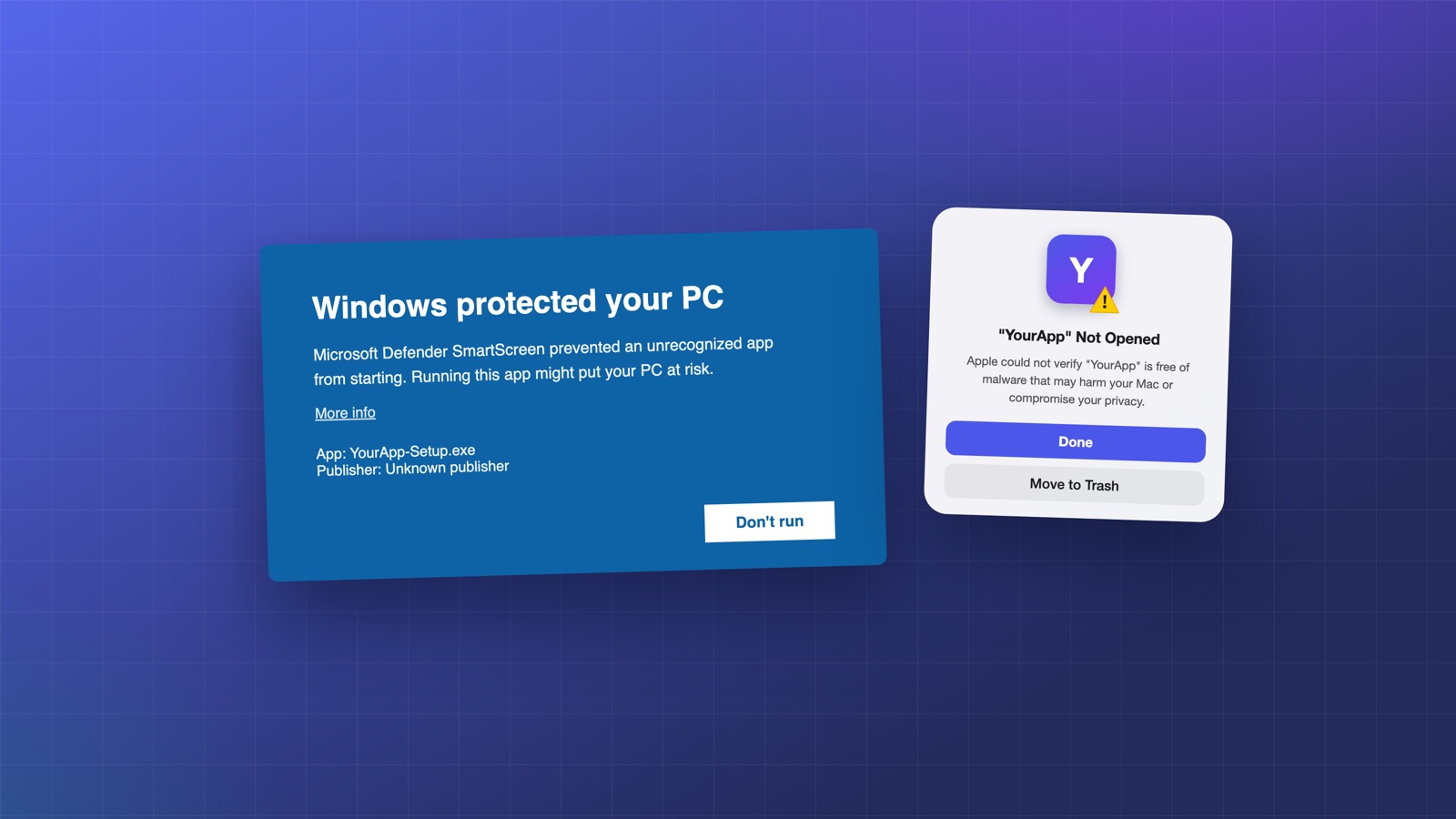
You can wrap a web app into a desktop app in an afternoon. The tutorials make it look done. Then you send the installer to your first real user and they hit a full-screen warning that says your app "can't be opened because it is from an unidentified developer," or Windows SmartScreen flashes red and buries the "run anyway" button.
That's the moment you learn that building the app was the easy 20%. Code signing and auto-updates are the other 80%, and almost nobody explains them end to end. This post does.
Why signing exists (and why you can't skip it)
Operating systems assume an unsigned app is a threat until proven otherwise. Code signing is how you prove otherwise: you attach a cryptographic signature, backed by a certificate tied to your verified identity, that says "this app came from me and hasn't been tampered with since."
Skip it and three things happen:
- macOS Gatekeeper blocks the app with a scary dialog, or refuses to open it at all on newer versions.
- Windows SmartScreen warns users away, and your download-to-install conversion craters.
- Auto-updates simply won't work. On macOS, the updater refuses to install an update whose signature doesn't match. No signing, no updates, full stop.
Everything else in this post rests on signing. Skip it and the rest never gets a chance to work.
Signing on macOS: the two-headed process
macOS is the fiddly one because there are two distinct paths, and people constantly conflate them.
Path 1: Direct distribution (DMG/ZIP from your website). You need an Apple Developer account ($99/year) and a Developer ID Application certificate. You sign the app with it, then you notarize: you upload the signed app to Apple, their service scans it for malware, and staples a ticket to it. Notarization is separate from signing and equally required. An app that's signed but not notarized still gets blocked on modern macOS.
Path 2: The Mac App Store. Different certificates entirely (Apple Distribution + a Mac App Store provisioning profile), a sandbox you must comply with, and Apple's review process. Here, Apple effectively handles the trust, but you play by App Store rules.
The single most common mistake: signing with the wrong certificate type for your chosen path, and discovering it only when the app is rejected or won't launch.
Signing on Windows: the landscape shifted
Windows used to mean buying a code-signing certificate from a certificate authority, and until recently a proper EV (Extended Validation) certificate that came on a physical USB token, which made automated CI signing genuinely painful.
That's changed. Azure Trusted Signing now lets you sign Windows apps as a managed cloud service, no USB dongle, no self-managed certificate files, and it builds SmartScreen reputation. This is the modern default and it's dramatically less miserable than the old token workflow. (There's also a separate path for AppX packages using a publisher DN, if you're targeting the Microsoft Store.)
The other half: auto-updates
Signing gets the app installed. Auto-updates keep it from rotting. Without them, every bug fix means emailing users a new installer and hoping they run it. With them, users are always on the latest version and never think about it.
The standard toolchain for web-based desktop apps is electron-updater, and the model is simpler than it looks:
- You build a new version and sign it (there's that word again).
- You publish the installer plus a small metadata file (a
.ymldescribing the latest version) to a host, commonly an S3 bucket, a generic server, or GitHub Releases. - On launch, the app checks that metadata, sees a newer version, downloads it in the background, verifies the signature, and installs it on the next restart.
The gotchas that trip people up:
- The metadata files must be published next to the installers. Miss the
.ymland the app has no idea an update exists. - macOS updates must be signed and notarized, or the updater silently refuses them.
- Your publish target and your app's update feed have to point at the same place. A surprising number of "updates aren't working" tickets are just a URL mismatch.
What the full pipeline actually looks like
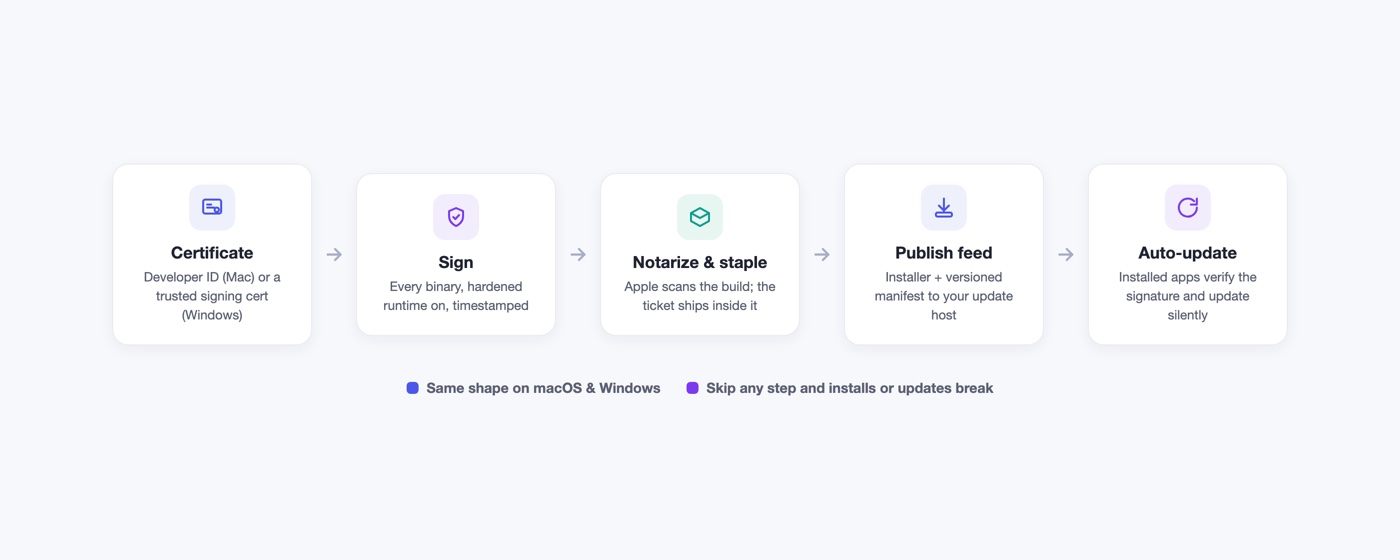
Put it all together and shipping one version of a cross-platform desktop app means:
- An Apple Developer account, plus the correct certificate for each macOS path
- A macOS signing + notarization step
- An Azure Trusted Signing setup for Windows (and AppX handling if you want the Microsoft Store)
- A Linux packaging step (AppImage/DEB/RPM)
- A publish target (S3 or similar) hosting installers and matching update metadata
- An update feed baked into the app, pointing at that target
- All of it re-run, correctly, on every single release
None of it is conceptually hard. All of it is finicky, easy to get subtly wrong, and unforgiving when you do. This is the work that turns "I built a desktop app" into a three-week project.
The shortcut
This entire pipeline is exactly what Deskifier handles for you. You point it at your web app's URL and it produces signed, notarized installers for Windows, macOS, and Linux, sets up auto-updates from S3 so new versions ship whenever you deploy, and gives you builds ready for the Mac App Store and Microsoft Store. The Windows signing runs through Azure Trusted Signing under the hood, so you get SmartScreen reputation without ever touching a certificate.
deskifier build --url app.yoursaas.com --store mac,windows
You still own your app and your web codebase. You just don't own the certificate wrangling, the notarization retries, or the update-feed debugging.
TL;DR
Signing proves your app is really from you, and every OS now demands it before it'll run your app or accept an update. macOS needs signing plus notarization (and different certs for direct vs App Store distribution); Windows is far easier now thanks to Azure Trusted Signing. Auto-updates mean publishing signed installers plus matching metadata to a host your app checks on launch. It's all doable by hand, it's all tedious, and it's all easy to get wrong, which is precisely why a platform that does it for you is worth it.